
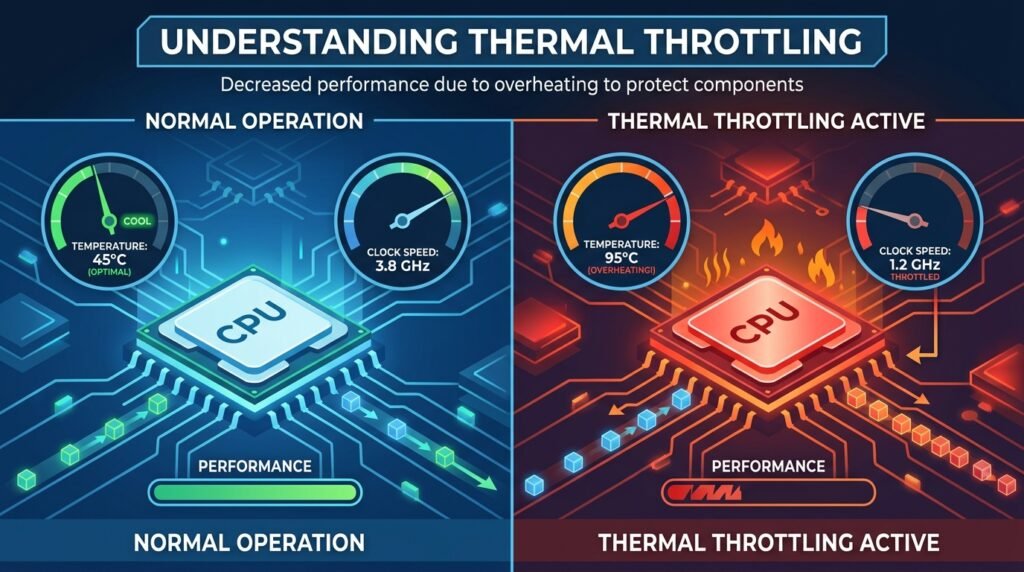
Laptop বা desktop computer কিছুক্ষণ ব্যবহারের পর হঠাৎ slow হয়ে গেলে, game-এর FPS কমে গেলে, video rendering শুরুতে দ্রুত কিন্তু পরে ধীর হলে অথবা processor clock speed অস্বাভাবিকভাবে নিচে নেমে গেলে Thermal Throttling হতে পারে।
Processor ও graphics chip নির্দিষ্ট নিরাপদ temperature-এর ওপরে গেলে নিজেকে ক্ষতির হাত থেকে রক্ষা করার জন্য clock speed, voltage এবং power consumption কমিয়ে দেয়। এর ফলে temperature কিছুটা নিয়ন্ত্রণে আসে, কিন্তু performance কমে যায়।
Thermal Throttling নিজে কোনো virus বা Windows error নয়। এটি hardware protection mechanism। তবে বারবার throttling হলে cooling system, fan, heatsink, thermal paste, airflow, room temperature, power configuration অথবা hardware workload পরীক্ষা করা প্রয়োজন।
Laptop অতিরিক্ত গরম হলে শুধু cooling pad ব্যবহার করলেই সবসময় সমাধান হয় না। প্রথমে temperature, fan behavior এবং performance drop-এর সময় processor clock speed পরীক্ষা করে সমস্যার আসল কারণ শনাক্ত করতে হবে।
## Thermal Throttling কী?
CPU, GPU ও অন্য semiconductor chip কাজ করার সময় তাপ তৈরি করে।
Temperature নিরাপদ limit-এর দিকে গেলে chip automaticভাবে কমিয়ে দিতে পারে:
* Clock speed
* Boost frequency
* Voltage
* Power limit
* GPU frequency
* Frame rate
* Processing performance
এই automatic performance reduction-কে Thermal Throttling বলা হয়।
এর উদ্দেশ্য:
* Chip damage প্রতিরোধ
* অতিরিক্ত temperature কমানো
* System shutdown এড়ানো
* Battery ও motherboard সুরক্ষা
* Cooling system-কে recovery time দেওয়া
## Thermal Throttling এবং Overheating কি একই?
দুটি সম্পর্কিত, কিন্তু এক নয়।
### Overheating
Hardware-এর temperature স্বাভাবিকের তুলনায় বেশি হওয়া।
### Thermal Throttling
Temperature বা power limit-এর কারণে performance automaticভাবে কমে যাওয়া।
Computer গরম হতে পারে কিন্তু throttling শুরু নাও হতে পারে। আবার কিছু thin laptop কম temperature target ব্যবহার করায় তুলনামূলক কম temperature-এই throttling করতে পারে।
## Thermal Throttling-এর সাধারণ লক্ষণ
* Laptop কিছুক্ষণ পর slow হয়ে যায়
* Game শুরুতে smooth, পরে FPS drop
* Processor clock speed কমে যায়
* Video rendering সময়ের সঙ্গে ধীর হয়
* Fan খুব দ্রুত ঘোরে
* Laptop body অতিরিক্ত গরম
* Keyboard area গরম হয়
* Computer হঠাৎ shutdown
* Blue screen বা restart
* Charger লাগালে বেশি গরম
* Performance mode-এ throttling
* Battery mode-এ speed কম
* CPU usage 100%, কিন্তু clock speed কম
* GPU usage অস্বাভাবিক
* Audio crackling
* Mouse বা typing lag
* Game stutter
* Emulator slow
* Browser tab freeze
* Cooling fan চালু হয় না
* Fan থেকে grinding sound
* Exhaust vent থেকে গরম বাতাস বের হয় না
* Laptop bed-এর ওপর রাখলে দ্রুত slow
## Thermal Throttling কেন হয়?
প্রধান কারণ:
* Fan ও heatsink-এ ধুলো
* Air vent blocked
* Thermal paste শুকিয়ে যাওয়া
* Thermal pad নষ্ট
* Fan দুর্বল বা বন্ধ
* Heatsink ঠিকভাবে বসানো নয়
* Laptop bed বা pillow-এর ওপর ব্যবহার
* Room temperature বেশি
* Heavy gaming বা rendering
* Charger mode-এ high power limit
* Overclock
* Aggressive performance mode
* Background process
* Malware বা crypto miner
* BIOS fan control সমস্যা
* Graphics driver সমস্যা
* Battery বা charging circuit heat
* Cooling design limitation
* Thin laptop chassis
* Damaged heatpipe
* Wrong thermal paste application
## CPU Temperature কত হওয়া স্বাভাবিক?
Exact temperature processor model, laptop design, room temperature ও workload অনুযায়ী ভিন্ন।
সাধারণভাবে:
### Idle বা Light Use
প্রায় 35°C–60°C দেখা যেতে পারে।
### Moderate Workload
প্রায় 55°C–80°C হতে পারে।
### Heavy Gaming বা Rendering
প্রায় 75°C–95°C হতে পারে।
কিছু modern processor brief boost-এর সময় 95°C বা তার কাছাকাছি যেতে পারে এবং তখন power management ব্যবহার করে।
শুধু একবার temperature spike দেখেই hardware damaged সিদ্ধান্ত নেবেন না। Sustained temperature, clock speed এবং performance গুরুত্বপূর্ণ।
## GPU Temperature কত হতে পারে?
Dedicated GPU gaming বা rendering-এর সময় সাধারণত CPU-এর তুলনায় আলাদা thermal target ব্যবহার করে।
বহু system-এ heavy load-এর সময় 70°C–85°C স্বাভাবিক হতে পারে।
কিছু GPU higher temperature target ব্যবহার করে।
যদি:
* Frequency কমে যায়
* FPS drop হয়
* Hotspot temperature অস্বাভাবিক
* Artifact দেখা যায়
* System crash করে
তাহলে cooling diagnosis প্রয়োজন।
## কাজ শুরুর আগে গুরুত্বপূর্ণ সতর্কতা
* গুরুত্বপূর্ণ file backup নিন
* Temperature test-এর সময় laptop unattended রাখবেন না
* Swollen battery থাকলে heavy test করবেন না
* Fan বন্ধ থাকলে stress test চালাবেন না
* Laptop নিজে খুলবেন না, অভিজ্ঞতা না থাকলে
* Thermal paste পরিবর্তনের আগে warranty দেখুন
* Heatpipe বাঁকাবেন না
* Fan-এ high-pressure air কাছ থেকে দেবেন না
* Liquid cleaner motherboard-এ ব্যবহার করবেন না
* Overclock বা voltage setting randomভাবে বদলাবেন না
* BIOS update unstable system-এ করবেন না
## ১. প্রথমে Computer Restart করুন
Temporary background process CPU usage বাড়িয়ে heat তৈরি করতে পারে।
1. সব কাজ save করুন
2. Computer Restart দিন
3. Windows চালু হওয়ার পর ৫ মিনিট অপেক্ষা করুন
4. Task Manager খুলুন
5. CPU usage দেখুন
Idle অবস্থায় অপ্রয়োজনীয় high CPU থাকলে application বা service culprit হতে পারে।
## ২. Task Manager দিয়ে CPU Usage দেখুন
`Ctrl + Shift + Esc` চাপুন।
Processes tab-এ CPU column sort করুন।
High usage process হতে পারে:
* Browser
* Windows Update
* Antivirus
* Game
* Video editor
* Emulator
* Cloud sync
* Background service
* Malware
Unknown process End Task করার আগে publisher ও file location যাচাই করুন।
## ৩. CPU Clock Speed দেখুন
Task Manager → Performance → CPU section-এ দেখুন:
* Base speed
* Current speed
* Utilization
Heavy workload-এর সময় utilization বেশি কিন্তু speed অস্বাভাবিকভাবে base speed-এর অনেক নিচে থাকলে throttling, power limit অথবা temperature সমস্যা হতে পারে।
Battery mode-এ speed কম থাকা সবসময় thermal problem নয়।
## ৪. Temperature Monitoring Tool ব্যবহার
CPU ও GPU temperature দেখার জন্য trusted monitoring software ব্যবহার করা যায়।
দেখুন:
* CPU package temperature
* Individual core temperature
* GPU temperature
* GPU hotspot, supported হলে
* Clock speed
* Power
* Fan RPM, supported হলে
* Thermal throttling flag
Unknown “PC booster” বা “cooling optimizer” ব্যবহার করবেন না।
## ৫. BIOS Hardware Monitor
Desktop motherboard বা কিছু laptop BIOS/UEFI-তে temperature ও fan speed দেখা যায়।
BIOS-এ temperature বেশি থাকলে সমস্যা শুধু Windows software নয়।
BIOS-এর setting না বুঝে পরিবর্তন করবেন না।
## ৬. Performance Drop হওয়ার সময় Temperature Record করুন
সঠিক diagnosis-এর জন্য তিনটি সময় compare করুন:
1. Computer চালুর পর
2. Heavy কাজ শুরুর ৫ মিনিট পর
3. Performance কমে যাওয়ার সময়
লিখে রাখুন:
* CPU temperature
* GPU temperature
* CPU clock
* GPU clock
* Fan speed
* FPS
* CPU/GPU utilization
এতে thermal problem প্রমাণ করা সহজ হয়।
## ৭. Laptop শক্ত ও সমতল জায়গায় রাখুন
Laptop-এর নিচের air intake bed, pillow, blanket বা sofa দিয়ে block হলে airflow কমে যায়।
ব্যবহার করুন:
* Desk
* Table
* Hard flat board
* Ventilated stand
নরম surface এড়িয়ে চলুন।
## ৮. Air Vent Blocked কি না দেখুন
দেখুন:
* Bottom intake vent
* Side exhaust
* Rear exhaust
* Dust layer
* Sticker বা cover
* Laptop stand vent ঢেকে দিচ্ছে কি না
Exhaust vent থেকে heavy load-এর সময় গরম বাতাস বের হওয়া উচিত।
Fan sound আছে কিন্তু বাতাস বের হয় না—এটি dust বা blocked heatsink-এর লক্ষণ হতে পারে।
## ৯. External Vent পরিষ্কার করুন
Laptop বন্ধ করুন এবং charger খুলুন।
Soft brush বা controlled compressed air দিয়ে external vent-এর ধুলো পরিষ্কার করা যায়।
Fan-কে uncontrolled high speed-এ ঘুরতে দেবেন না।
Compressed air খুব কাছ থেকে দিলে fan bearing বা internal component damage হতে পারে।
## ১০. Internal Dust Cleaning
দীর্ঘদিন ব্যবহার করা laptop-এর fan ও heatsink fin-এর মাঝখানে ধুলোর স্তর জমে airflow বন্ধ করতে পারে।
Internal cleaning-এ প্রয়োজন হতে পারে:
* Bottom cover খোলা
* Battery disconnect
* Fan খুলে পরিষ্কার
* Heatsink fin পরিষ্কার
* Air channel পরিষ্কার
অভিজ্ঞতা না থাকলে technician-এর মাধ্যমে করান।
## ১১. Fan চলছে কি না দেখুন
Heavy workload-এর সময় fan speed সাধারণত বাড়ে।
সমস্যার লক্ষণ:
* একদম fan sound নেই
* Fan start-stop করে
* Grinding sound
* Clicking sound
* Fan খুব ধীরে ঘোরে
* BIOS fan error
* Laptop গরম, কিন্তু exhaust airflow নেই
Fan replacement প্রয়োজন হতে পারে।
## ১২. Fan Noise-এর ধরন
### দ্রুত বাতাসের শব্দ
Heavy load-এ সাধারণ হতে পারে।
### Grinding বা rattling
Bearing, blade বা dust problem হতে পারে।
### Clicking
Fan blade cable বা housing-এ লাগতে পারে।
### Whining
Fan motor অথবা coil-related sound হতে পারে।
Abnormal mechanical sound ignore করবেন না।
## ১৩. Thermal Paste কী?
Thermal paste CPU/GPU chip এবং heatsink-এর microscopic gap পূরণ করে।
এটি heat chip থেকে heatsink-এ transfer হতে সাহায্য করে।
সময়, heat cycle বা poor application-এর কারণে paste শুকিয়ে বা বিচ্ছিন্ন হতে পারে।
## ১৪. Thermal Paste কখন পরিবর্তন দরকার?
সম্ভাব্য লক্ষণ:
* Internal cleaning-এর পরও temperature বেশি
* CPU temperature দ্রুত spike
* Fan full speed
* Performance throttling
* Heatsink খুলে service করা হয়েছে
* পুরোনো laptop
* Paste visibly শুকনো
* CPU/GPU temperature imbalance
শুধু laptop এক বছর পুরোনো বলেই paste পরিবর্তন বাধ্যতামূলক নয়।
## ১৫. Thermal Paste পরিবর্তনের ঝুঁকি
ভুলভাবে করলে:
* CPU/GPU contact খারাপ
* Motherboard short
* Excess paste ছড়িয়ে যাওয়া
* Screw pressure অসমান
* Thermal pad হারানো
* Heatpipe বাঁকা
* Fan connector ভাঙা
* Warranty void
হতে পারে।
## ১৬. বেশি Thermal Paste কি ভালো?
না।
অতিরিক্ত paste heat transfer উন্নত না-ও করতে পারে এবং conductive paste হলে ঝুঁকি বাড়ায়।
কম paste দিলে coverage অসম্পূর্ণ হতে পারে।
সঠিক amount, paste type এবং heatsink pressure গুরুত্বপূর্ণ।
## ১৭. Liquid Metal ব্যবহার করবেন কি?
Liquid metal উচ্চ thermal conductivity দিতে পারে, কিন্তু:
* Electrically conductive
* Aluminium damage করতে পারে
* Leakage risk
* Application কঠিন
* Maintenance প্রয়োজন
* Laptop movement-এ risk
সাধারণ laptop user-এর জন্য এটি recommended নয়।
## ১৮. Thermal Pad কী?
VRAM, power component এবং অন্য chip heatsink-এর সঙ্গে contact করার জন্য thermal pad ব্যবহার হতে পারে।
Pad-এর thickness ভুল হলে:
* Main CPU contact নষ্ট
* Temperature বাড়ে
* VRM overheats
* GPU memory সমস্যা
হতে পারে।
Original thickness না জেনে pad পরিবর্তন করবেন না।
## ১৯. Heatsink Screw সঠিকভাবে Tight করা
Heatsink screw সাধারণত numbered order-এ tighten করতে হয়।
এক পাশে বেশি pressure দিলে contact অসমান হতে পারে।
সব screw অতিরিক্ত tight করবেন না।
Manufacturer service manual অনুসরণ করুন।
## ২০. Heatpipe Damage
Heatpipe ভেতরের working fluid ব্যবহার করে heat transfer করে।
বাঁকা, punctured বা failed heatpipe হলে fan চললেও heat heatsink fin-এ পৌঁছাবে না।
লক্ষণ:
* CPU area খুব গরম
* Exhaust বাতাস তুলনামূলক ঠান্ডা
* Thermal paste নতুন
* Fan ঠিক
* Temperature দ্রুত 100°C-এর দিকে যায়
Heatpipe assembly replace করতে হতে পারে।
## ২১. Cooling Pad কতটা কার্যকর?
Cooling pad airflow বাড়াতে পারে, বিশেষ করে bottom intake থাকা laptop-এ।
Improvement নির্ভর করে:
* Vent position
* Fan alignment
* Laptop design
* Room temperature
* Internal dust
* Cooling pad airflow
Internal heatsink blocked থাকলে cooling pad মূল সমস্যা ঠিক করবে না।
## ২২. Laptop Stand ব্যবহার
Passive stand laptop-এর নিচে space বাড়িয়ে airflow উন্নত করতে পারে।
অনেক ক্ষেত্রে সাধারণ stand-ও কয়েক ডিগ্রি improvement দিতে পারে।
Vent block না হয় তা নিশ্চিত করুন।
## ২৩. Room Temperature-এর প্রভাব
গরম room-এ cooling system-এর কাছে heat বের করা কঠিন হয়।
Improvement-এর জন্য:
* Room ventilation
* Fan বা air conditioning
* Direct sunlight এড়িয়ে চলা
* Heat source থেকে দূরে রাখা
ব্যবহার করুন।
## ২৪. Battery ও Charger Heat
Charging-এর সময় battery ও power circuit heat তৈরি করতে পারে।
Heavy gaming + charging + high room temperature একসঙ্গে হলে thermal load বাড়ে।
Original বা correct wattage charger ব্যবহার করুন।
## ২৫. Wrong Charger-এর প্রভাব
Low-wattage বা incompatible charger:
* Battery drain while plugged in
* Performance limit
* Adapter heat
* Charging circuit stress
* Unstable power
তৈরি করতে পারে।
Correct voltage, wattage এবং connector ব্যবহার করুন।
## ২৬. Windows Power Mode পরীক্ষা করুন
Settings → System → Power & battery থেকে Power mode দেখুন।
Option হতে পারে:
* Best power efficiency
* Balanced
* Best performance
Best performance mode বেশি power ও heat তৈরি করতে পারে।
Balanced mode-এ temperature ও performance compare করুন।
## ২৭. Maximum Processor State কমিয়ে Test
Advanced Power Options-এ Maximum Processor State সাময়িকভাবে কমালে boost frequency সীমিত হতে পারে এবং temperature কমতে পারে।
উদাহরণ হিসেবে 99% setting কিছু system-এ turbo boost disable করতে পারে।
তবে:
* Performance কমবে
* সব system-এ একই behavior নয়
* এটি cooling repair-এর বিকল্প নয়
Diagnosis বা temporary workaround হিসেবে ব্যবহার করুন।
## ২৮. Processor Boost Mode
কিছু system-এ Processor Performance Boost Mode advanced setting থাকে।
Aggressive boost heat বাড়াতে পারে।
Setting পরিবর্তনের আগে default value note করুন।
Laptop manufacturer utility থাকলে সেটি ব্যবহার করা ভালো।
## ২৯. Manufacturer Performance Profile
Laptop utility-তে mode থাকতে পারে:
* Silent
* Balanced
* Performance
* Turbo
* Cool
* Battery saver
Performance mode বেশি fan ও power ব্যবহার করতে পারে।
Silent mode temperature limit ধরে রাখতে performance আগে কমাতে পারে।
## ৩০. Fan Profile নির্বাচন
Custom fan curve supported হলে temperature বাড়ার আগে fan speed বাড়ানো যায়।
কিন্তু:
* Fan noise বাড়বে
* Fan wear বাড়তে পারে
* Wrong utility conflict করতে পারে
Official manufacturer tool ব্যবহার করুন।
## ৩১. BIOS Fan Setting
Desktop motherboard BIOS-এ fan curve configure করা যায়।
Laptop-এ সাধারণত manufacturer control ব্যবহার করা উচিত।
Fan control disable করবেন না।
## ৩২. BIOS Update
Manufacturer কিছু thermal, fan বা power management bug BIOS update-এ ঠিক করতে পারে।
Update-এর আগে:
* Exact model
* Correct BIOS
* Stable power
* Battery charge
* BitLocker recovery key
* Data backup
নিশ্চিত করুন।
Overheating অবস্থায় BIOS update ঝুঁকিপূর্ণ।
## ৩৩. Graphics Driver Update
Gaming-এর সময় GPU power management bug বা utilization সমস্যা driver update-এ ঠিক হতে পারে।
Official source ব্যবহার করুন:
* NVIDIA
* AMD
* Intel
* Laptop manufacturer
Unknown driver updater ব্যবহার করবেন না।
## ৩৪. Driver Update-এর পর Overheating
নতুন driver power limit, performance profile বা game behavior পরিবর্তন করতে পারে।
সমস্যা update-এর পর শুরু হলে:
* Clean driver install
* Previous stable driver
* Graphics setting reset
* Game profile review
করুন।
## ৩৫. Background Application বন্ধ করুন
Gaming বা rendering-এর আগে বন্ধ করুন:
* Browser tab
* Cloud sync
* Windows Update
* Game launcher update
* Screen recorder
* Video call
* Emulator
* Virtual machine
* Antivirus scheduled scan
Unknown system process বন্ধ করবেন না।
## ৩৬. Malware বা Crypto Miner পরীক্ষা
Idle অবস্থায় CPU/GPU usage বেশি এবং fan দ্রুত হলে malware থাকতে পারে।
Windows Security থেকে চালান:
* Quick Scan
* Full Scan
* Microsoft Defender Offline Scan
Crack, activator ও unknown optimizer remove করুন।
## ৩৭. Browser Overheating
Browser heat বাড়াতে পারে যদি:
* অনেক tab
* Video playback
* Web game
* Video meeting
* Heavy extension
* Hardware acceleration সমস্যা
* Advertisement script
চলে।
Unused tab ও extension বন্ধ করুন।
## ৩৮. Video Meeting-এর সময় গরম হওয়া
Zoom, Meet বা Teams একসঙ্গে ব্যবহার করে:
* Camera
* Microphone
* Video encoding
* Network
* Background blur
* Screen sharing
ফলে CPU/GPU load বাড়ে।
Background blur ও high-resolution video বন্ধ করে test করুন।
## ৩৯. Gaming-এর সময় FPS Drop
Thermal throttling ছাড়াও কারণ হতে পারে:
* GPU driver
* RAM কম
* VRAM পূর্ণ
* Network latency
* Storage
* Game update
* Background recording
* Power mode
* Battery mode
Temperature ও clock speed monitor করে নিশ্চিত করুন।
## ৪০. Charger ছাড়া Gaming
Battery mode-এ laptop performance limit করা স্বাভাবিক।
Charger না থাকলে FPS কম হওয়া thermal throttling নাও হতে পারে।
Original charger লাগিয়ে compare করুন।
## ৪১. GPU Power Limit
Thin gaming laptop-এ GPU power limit ও temperature limit একসঙ্গে কাজ করে।
Monitoring tool-এ limit reason দেখা যেতে পারে:
* Thermal
* Power
* Voltage
* Utilization
শুধু temperature দেখেই সিদ্ধান্ত নেবেন না।
## ৪২. CPU Power Limit Throttling
CPU package temperature খুব বেশি না হলেও power limit-এর কারণে clock কমতে পারে।
এটি manufacturer design, charger mode বা BIOS policy-এর অংশ হতে পারে।
Power limit bypass করা hardware damage বা instability তৈরি করতে পারে।
## ৪৩. VRM Throttling
Motherboard-এর voltage regulator অতিরিক্ত গরম হলে CPU clock কমতে পারে।
লক্ষণ:
* CPU temperature মাঝারি
* Performance হঠাৎ কম
* VRM cooling দুর্বল
* Sustained heavy load-এ সমস্যা
Desktop-এ VRM airflow এবং laptop-এ motherboard cooling inspection প্রয়োজন।
## ৪৪. SSD Overheating
NVMe SSD অতিরিক্ত গরম হলে read/write speed কমাতে পারে।
লক্ষণ:
* Large file copy শুরুতে দ্রুত, পরে slow
* Video editing cache slow
* Game loading stutter
* SSD temperature high
SSD heatsink বা airflow প্রয়োজন হতে পারে।
## ৪৫. RAM Temperature
High-performance desktop RAM overclock বা poor airflow-এ unstable হতে পারে।
Laptop RAM সাধারণত direct thermal throttling কম দেখায়, কিন্তু overall heat instability তৈরি করতে পারে।
## ৪৬. Dust Cleaning কতদিন পর?
Fixed schedule সবার জন্য এক নয়।
Frequency নির্ভর করে:
* Dusty environment
* Smoking
* Pet hair
* Floor use
* Fan runtime
* Room ventilation
* Device design
Temperature, airflow ও fan noise দেখে service interval নির্ধারণ করুন।
## ৪৭. Laptop Vacuum Cleaner দিয়ে পরিষ্কার করবেন?
Household vacuum static electricity তৈরি করতে পারে এবং fan overspin করাতে পারে।
Directভাবে motherboard বা vent-এ powerful vacuum ব্যবহার করবেন না।
Controlled cleaning method ব্যবহার করুন।
## ৪৮. Compressed Air ব্যবহারে সতর্কতা
* Laptop বন্ধ করুন
* Charger খুলুন
* Fan blade স্থির রাখুন, সম্ভব হলে
* Short burst ব্যবহার করুন
* Can সোজা রাখুন
* Liquid propellant বের হতে দেবেন না
Vent-এর একদিকে air দিয়ে dust আরও ভেতরে ঠেলে দেওয়া হতে পারে।
## ৪৯. Fan Replacement কখন দরকার?
* Fan ঘোরে না
* BIOS fan error
* Grinding sound
* Blade damaged
* RPM unstable
* Cleaning-এর পরও airflow নেই
* Connector damaged
* Fan bearing loose
Exact model-এর compatible fan ব্যবহার করুন।
## ৫০. Thermal Shutdown
Temperature critical level-এ গেলে system নিজে shutdown হতে পারে।
Repeated thermal shutdown হলে ব্যবহার বন্ধ করুন।
বারবার চালালে:
* Data corruption
* Hardware stress
* Battery heat
* Storage error
হতে পারে।
## ৫১. Blue Screen ও Overheating
Overheating সরাসরি বা indirectভাবে instability তৈরি করতে পারে।
তবে Blue Screen-এর অন্য কারণও আছে:
* RAM
* Driver
* SSD
* Power
* Windows corruption
Temperature evidence ছাড়া শুধু overheating ধরে নেবেন না।
## ৫২. Overclock বন্ধ করুন
CPU, GPU বা RAM overclock heat ও instability বাড়ায়।
Troubleshooting-এর সময় default setting ব্যবহার করুন।
Desktop BIOS reset করার আগে current storage mode, boot এবং memory setting note করুন।
## ৫৩. Undervolt কী?
Undervolt processor-এর voltage কমিয়ে heat ও power কমানোর চেষ্টা।
কিছু hardware-এ useful হতে পারে, কিন্তু:
* Instability
* Crash
* Data corruption
* Security restriction
* BIOS lock
হতে পারে।
সাধারণ user-এর জন্য এটি first-line solution নয়।
## ৫৪. Laptop Cooling Design Limitation
Thin ও light laptop-এ compact cooling system থাকায় sustained heavy workload-এ performance কিছুটা কমতে পারে।
এটি সবসময় defect নয়।
Laptop নির্বাচন করার সময় শুধু processor model নয়, cooling capacity ও sustained performance review করা উচিত।
## ৫৫. Thermal Throttling কি Hardware Damage করে?
Thermal throttling damage প্রতিরোধের জন্য তৈরি।
কিন্তু দীর্ঘসময় high heat:
* Battery degradation
* Fan wear
* Thermal paste ageing
* Component stress
* SSD temperature
* Keyboard/palm rest heat
বাড়াতে পারে।
মূল overheating কারণ ঠিক করা উচিত।
## ৫৬. Laptop Case খুব গরম হওয়া কি স্বাভাবিক?
কিছু metal-body laptop heat ছড়িয়ে দিতে chassis ব্যবহার করে, তাই surface গরম লাগতে পারে।
শুধু touch দিয়ে chip temperature নিশ্চিত করা যায় না।
Monitoring data, fan behavior ও performance দেখুন।
## ৫৭. Keyboard Area গরম হলে
CPU/GPU অবস্থান keyboard-এর নিচে হলে গরম লাগতে পারে।
অস্বাভাবিক হলে পরীক্ষা করুন:
* Heavy workload
* Blocked vent
* Fan
* Battery
* SSD
* Charging circuit
## ৫৮. Bottom Cover ফুলে গেলে
এটি thermal issue নয়, swollen battery হতে পারে।
Laptop বন্ধ করুন এবং charger খুলুন।
Battery inspection ছাড়া heavy load দেবেন না।
## ৫৯. Desktop PC Overheating
Desktop-এর জন্য পরীক্ষা করুন:
* CPU cooler
* Cooler mounting
* Case fan
* Dust filter
* Airflow direction
* Thermal paste
* GPU fan
* Cable management
* Room temperature
## ৬০. Desktop Airflow Direction
সাধারণ configuration:
* Front/Bottom intake
* Rear/Top exhaust
সব fan একই দিকে ভুলভাবে থাকলে hot air আটকে যেতে পারে।
Case design অনুযায়ী airflow plan করুন।
## ৬১. CPU Cooler Plastic Film
নতুন cooler install-এর সময় protective plastic film না খুললে temperature খুব দ্রুত বাড়ে।
New build-এ immediate overheating হলে cooler contact ও film পরীক্ষা করুন।
## ৬২. AIO Liquid Cooler সমস্যা
AIO cooler-এ সম্ভাব্য সমস্যা:
* Pump failure
* Air lock
* Radiator dust
* Fan failure
* Wrong pump header
* Loose mounting
* Coolant ageing
CPU temperature দ্রুত critical হলে pump operation পরীক্ষা করুন।
## ৬৩. Laptop Liquid Cooling নয়
সাধারণ laptop heatpipe-based cooling ব্যবহার করে।
“Liquid cooling pad” বা misleading product claim থেকে সতর্ক থাকুন।
## ৬৪. Thermal Camera কি প্রয়োজন?
Professional diagnosis-এ thermal camera hotspot শনাক্ত করতে সাহায্য করতে পারে।
সাধারণ user-এর জন্য software sensor data এবং physical inspection যথেষ্ট হতে পারে।
## ৬৫. Stress Test কখন করবেন?
Cleaning বা repair-এর পর controlled stress test stability যাচাই করতে ব্যবহার করা যায়।
কিন্তু করবেন না যদি:
* Fan কাজ না করে
* Battery swollen
* Shutdown হচ্ছে
* Temperature ইতিমধ্যে critical
* Charger unstable
* Data backup নেই
Stress test technician supervision-এ করা নিরাপদ।
## ৬৬. Benchmark Result Compare
Same model-এর result-এর সঙ্গে compare করতে হলে দেখুন:
* Power mode
* Room temperature
* RAM
* Driver
* BIOS
* Charger
* Test duration
* Background process
একটি short benchmark sustained thermal performance দেখায় না।
## ৬৭. Short Test বনাম Long Test
Short test-এ processor boost frequency ধরে রাখতে পারে।
Long workload-এ cooling saturation হলে performance কমে যেতে পারে।
Thermal throttling বুঝতে sustained test বেশি useful।
## ৬৮. Performance Log রাখা
Before এবং after service record রাখুন:
* Idle temperature
* Load temperature
* Clock speed
* Benchmark score
* Fan noise
* FPS
* Room temperature
এতে cleaning বা paste change-এর বাস্তব improvement বোঝা যায়।
## ৬৯. Windows Reinstall কি Overheating ঠিক করবে?
Hardware cooling সমস্যা Windows reinstall দিয়ে ঠিক হবে না।
তবে malware, driver বা background workload heat তৈরি করলে software cleanup সাহায্য করতে পারে।
প্রথমে temperature ও process usage দেখুন।
## ৭০. Cooling Service-এর পরও Temperature বেশি
সম্ভাব্য কারণ:
* Wrong thermal paste application
* Wrong thermal pad thickness
* Heatsink pressure
* Damaged heatpipe
* Fan দুর্বল
* BIOS power profile
* Room temperature
* Sensor issue
* Hardware design limit
Reinspection প্রয়োজন।
## নিরাপদ Diagnosis Flow
Laptop overheating বা thermal throttling হলে এই ক্রমে কাজ করুন:
1. Battery swelling পরীক্ষা
2. Hard flat surface ব্যবহার
3. Task Manager CPU/GPU usage
4. Temperature ও clock speed monitor
5. Background process বন্ধ
6. Power mode Balanced
7. External vent পরিষ্কার
8. Fan airflow ও sound পরীক্ষা
9. Internal dust cleaning
10. Thermal paste ও pad inspection
11. Fan ও heatpipe test
12. BIOS ও driver update review
13. Charger ও battery heat পরীক্ষা
14. Controlled stress test
15. Hardware service
## যেসব কাজ করবেন না
* Laptop bed বা pillow-এর ওপর ব্যবহার করবেন না
* Fan বন্ধ থাকলে game বা stress test চালাবেন না
* Swollen battery-তে heavy load দেবেন না
* Vacuum দিয়ে motherboard পরিষ্কার করবেন না
* Thermal paste অতিরিক্ত দেবেন না
* Liquid metal নিজে ব্যবহার করবেন না
* Wrong thermal pad thickness ব্যবহার করবেন না
* Heatpipe বাঁকাবেন না
* Fan control পুরোপুরি বন্ধ করবেন না
* Overclock রেখে troubleshooting করবেন না
* BIOS randomভাবে পরিবর্তন করবেন না
* Temperature কমাতে freezer বা ice ব্যবহার করবেন না
* Cooling vent-এ পানি বা liquid cleaner দেবেন না
## কখন Professional সাহায্য প্রয়োজন?
নিচের অবস্থায় technician-এর সাহায্য নিন:
* Laptop হঠাৎ shutdown
* CPU temperature দ্রুত critical
* Fan ঘোরে না
* Grinding sound
* Exhaust airflow নেই
* Internal dust cleaning প্রয়োজন
* Thermal paste পরিবর্তন
* Heatpipe damage সন্দেহ
* Battery swollen
* Charger ও power circuit heat
* Cleaning-এর পরও throttling
* Gaming laptop repasting
* Liquid damage
* BIOS fan error
* Data backup প্রয়োজন
* Desktop cooler installation
## দিনাজপুরে Laptop Overheating ও Cooling Service
Laptop বা desktop গরম হয়ে slow, FPS drop, fan noise অথবা thermal shutdown হলে Dinajpur IT Park-এ যোগাযোগ করতে পারেন।
আমরা প্রয়োজন অনুযায়ী সহায়তা করি:
* CPU ও GPU temperature check
* Thermal throttling diagnosis
* Laptop fan cleaning
* Heatsink dust cleaning
* Thermal paste replacement
* Thermal pad inspection
* Cooling fan replacement
* Heatpipe assessment
* Gaming laptop cooling service
* Desktop CPU cooler installation
* Airflow optimization
* BIOS ও driver review
* Battery swelling inspection
* SSD ও RAM temperature diagnosis
* Windows performance check
**Dinajpur IT Park**
নিউটাউন ৩ নং বাজার, সদর, দিনাজপুর
মোবাইল: 01676-620232
বিকল্প মোবাইল: 01773-975423
WhatsApp: 01676-620232
Laptop হঠাৎ shutdown হলে, fan বন্ধ থাকলে অথবা battery ফুলে গেলে heavy use বন্ধ করে দ্রুত hardware inspection করান।
## সাধারণ প্রশ্ন ও উত্তর
### Thermal Throttling কী?
Temperature বা power limit-এর কারণে CPU বা GPU নিজে থেকে clock speed কমিয়ে performance সীমিত করাকে Thermal Throttling বলে।
### Laptop গরম হলে কেন Slow হয়?
Processor নিরাপদ temperature বজায় রাখতে speed ও power কমিয়ে দেয়।
### Thermal Throttling কীভাবে বুঝব?
Performance drop-এর সময় CPU/GPU temperature, clock speed এবং throttling flag monitor করুন।
### 90°C CPU Temperature কি বিপজ্জনক?
Processor model ও workload অনুযায়ী ভিন্ন। Sustained high temperature, clock drop ও shutdown থাকলে cooling পরীক্ষা করুন।
### Cooling Pad ব্যবহার করলে কি সমস্যা ঠিক হবে?
Airflow কিছুটা উন্নত করতে পারে। Internal dust, broken fan বা শুকনো thermal paste ঠিক করবে না।
### Thermal Paste পরিবর্তন করলে Performance বাড়ে?
পুরোনো বা খারাপ paste heat transfer বাধা দিলে temperature কমে sustained performance বাড়তে পারে।
### Thermal Paste কতদিন পর পরিবর্তন করতে হয়?
নির্দিষ্ট সময় সবার জন্য নেই। Temperature, throttling ও service history দেখে সিদ্ধান্ত নিন।
### Fan সবসময় দ্রুত ঘোরা কি সমস্যা?
Heavy workload-এ স্বাভাবিক হতে পারে। Idle অবস্থায়ও হলে background process, dust, paste বা fan control পরীক্ষা করুন।
### Exhaust Vent থেকে বাতাস না এলে কী সমস্যা?
Dust blockage, weak fan, stopped fan বা heatsink obstruction হতে পারে।
### Charger লাগালে বেশি গরম হয় কেন?
Performance boost, battery charging ও power circuit-এর কারণে heat বাড়তে পারে।
### Best Performance Mode ব্যবহার করব?
Heavy কাজের জন্য করা যায়, তবে heat ও fan noise বাড়ে। Balanced mode-এ compare করুন।
### Windows Reinstall করলে Overheating ঠিক হবে?
Hardware cooling সমস্যা ঠিক হবে না। Software workload বা malware থাকলে কিছু ক্ষেত্রে সাহায্য করতে পারে।
### Laptop হঠাৎ বন্ধ হলে কী করব?
ব্যবহার বন্ধ করুন, temperature, fan, battery ও charger পরীক্ষা করান।
### Swollen Battery এবং Overheating কি সম্পর্কিত?
Swollen battery নিজেই heat ও safety risk তৈরি করতে পারে। দ্রুত replacement প্রয়োজন।
## শেষ কথা
Laptop গরম হয়ে performance কমলে প্রথমে Task Manager থেকে background CPU usage এবং monitoring tool দিয়ে CPU/GPU temperature ও clock speed পরীক্ষা করুন।
Hard flat surface ব্যবহার করুন, air vent block করবেন না এবং fan airflow দেখুন। Cleaning-এর পরও temperature বেশি থাকলে thermal paste, thermal pad, heatsink contact, fan এবং heatpipe professionalভাবে পরীক্ষা করা প্রয়োজন।
Cooling pad temporaryভাবে airflow বাড়াতে পারে, কিন্তু internal dust, damaged fan অথবা poor thermal contact ঠিক করতে পারে না। Temperature কমানোর জন্য random BIOS tweak, overclock, undervolt বা liquid metal ব্যবহার না করে মূল cooling problem শনাক্ত করুন।
Laptop হঠাৎ shutdown হলে, fan বন্ধ থাকলে, grinding sound হলে অথবা battery ফুলে গেলে heavy use বন্ধ করে দ্রুত hardware service নিন।