
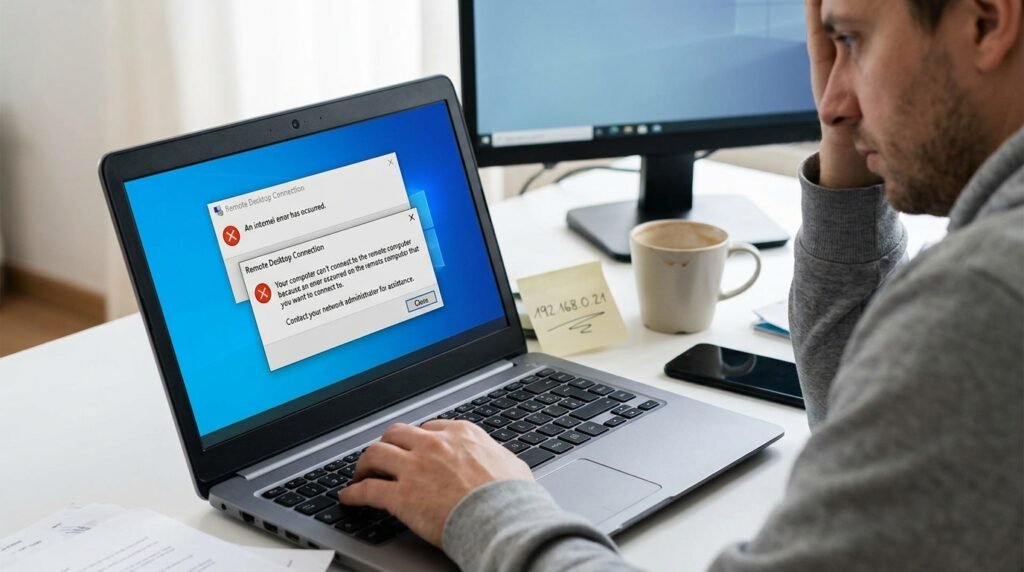
অন্য একটি কম্পিউটার থেকে অফিস বা বাসার Windows PC নিয়ন্ত্রণ করার জন্য Remote Desktop অত্যন্ত কার্যকর। কিন্তু Remote Desktop Connection ব্যবহার করার সময় “Remote Desktop can’t connect to the remote computer”, “Your credentials did not work”, “Access is denied”, “An internal error has occurred” অথবা Black Screen-এর মতো সমস্যা দেখা দিতে পারে।
**পিসি থেকে Remote Desktop Access সমস্যা** সাধারণত Remote Desktop বন্ধ থাকা, Windows Home Edition ব্যবহার, ভুল IP Address, Firewall Block, Network Profile, User Permission, Password, Remote Desktop Services অথবা Router Configuration-এর কারণে হয়।
এই নির্দেশিকায় Windows 10 ও Windows 11 কম্পিউটারে Remote Desktop Connection সমস্যা নির্ণয় এবং সমাধানের নিরাপদ পদ্ধতিগুলো ধাপে ধাপে দেখানো হয়েছে।
## Remote Desktop কী?
Remote Desktop হলো Windows-এর একটি Remote Access সুবিধা। এর মাধ্যমে একটি Computer থেকে Network বা Internet ব্যবহার করে অন্য Windows Computer-এর Desktop, Software, File ও System Settings নিয়ন্ত্রণ করা যায়।
Remote Desktop ব্যবহারের জন্য দুটি Computer-এর ভূমিকা থাকে:
* Remote PC বা Host: যে Computer-টি দূর থেকে নিয়ন্ত্রণ করা হবে
* Client PC: যে Computer থেকে Remote PC-তে Connect করা হবে
Client Computer থেকে `Remote Desktop Connection` App ব্যবহার করে Remote PC-এর নাম অথবা IP Address দিয়ে সংযোগ করা যায়।
## Remote Desktop ব্যবহারের আগে প্রয়োজনীয় বিষয়
Remote Desktop Connection ঠিকভাবে কাজ করার জন্য নিশ্চিত করুন:
* Remote PC চালু এবং Network-এর সঙ্গে সংযুক্ত
* Remote PC Sleep বা Hibernate Mode-এ নেই
* Remote Desktop Feature Enable করা আছে
* Remote PC উপযুক্ত Windows Edition ব্যবহার করছে
* User Account-এ Password দেওয়া আছে
* Firewall-এ Remote Desktop Allowed
* সঠিক Computer Name বা IP Address ব্যবহার করছেন
* User Account Remote Desktop ব্যবহারের অনুমতি পেয়েছে
* একই Network অথবা সঠিক VPN/Router Configuration ব্যবহার করছেন
## Windows Home Edition-এ Remote Desktop Host কাজ করে কি?
Windows Home Edition ব্যবহার করে অন্য Remote Desktop Host-এ Connect করা যায়। কিন্তু Windows-এর Built-in Remote Desktop ব্যবহার করে Windows Home PC-কে সাধারণত Host হিসেবে দূর থেকে নিয়ন্ত্রণ করা যায় না।
অর্থাৎ:
* Windows Home PC থেকে অন্য Windows Pro PC-তে Connect করা যায়
* Windows Home PC-তে Built-in RDP Host চালু করে Connect করা যায় না
* Remote PC বা Host-এর জন্য Windows Pro, Enterprise, Education অথবা উপযুক্ত Server Edition প্রয়োজন
Windows Edition পরীক্ষা করতে:
1. `Windows + R` চাপুন।
2. লিখুন:
`winver`
3. Enter চাপুন।
অথবা যান:
`Settings > System > About`
Windows Specifications-এর নিচে Edition দেখুন।
## Remote Desktop Enable করার নিয়ম
Remote PC-তে নিচের ধাপগুলো অনুসরণ করুন:
1. `Windows + I` চেপে Settings খুলুন।
2. **System** নির্বাচন করুন।
3. **Remote Desktop** খুলুন।
4. Remote Desktop Option চালু করুন।
5. Confirmation এলে **Confirm** চাপুন।
6. প্রদর্শিত PC Name লিখে রাখুন।
Windows 10-এ সাধারণত Path:
`Settings > System > Remote Desktop`
Windows 11-এও একই ধরনের Path ব্যবহার করা হয়।
## Remote Desktop Connection চালু করার নিয়ম
Client PC থেকে:
1. `Windows + R` চাপুন।
2. লিখুন:
`mstsc`
3. Enter চাপুন।
4. Computer ঘরে Remote PC-এর Name অথবা IP Address লিখুন।
5. **Connect** চাপুন।
6. Remote PC-এর Username ও Password দিন।
Computer Name দিয়ে কাজ না হলে IP Address দিয়ে চেষ্টা করুন।
## Remote PC-এর IP Address বের করার নিয়ম
Remote PC-তে Command Prompt খুলে চালান:
`ipconfig`
এরপর সক্রিয় Network Adapter-এর নিচে `IPv4 Address` খুঁজুন।
উদাহরণ:
`192.168.0.105`
Client PC-এর Remote Desktop Connection-এ এই IP Address লিখে Connect করুন।
Dynamic IP Address হলে Router Restart বা Network Reconnect-এর পর IP পরিবর্তিত হতে পারে। নিয়মিত Remote Access প্রয়োজন হলে Router থেকে DHCP Reservation ব্যবহার করা যেতে পারে।
## সমস্যা ১: “Remote Desktop can’t connect to the remote computer”
এই Error-এর সাধারণ কারণ:
* Remote Desktop বন্ধ
* Remote PC বন্ধ বা Sleep Mode-এ
* ভুল IP Address
* Firewall Connection Block করছে
* দুটি PC একই Network-এ নেই
* Remote Desktop Service বন্ধ
* Router বা VPN সমস্যা
প্রথমে পরীক্ষা করুন:
1. Remote PC চালু আছে কি না।
2. Remote Desktop Enable আছে কি না।
3. সঠিক IP Address ব্যবহার করছেন কি না।
4. Client PC থেকে Remote PC Ping করা যাচ্ছে কি না।
5. Firewall-এ Remote Desktop Allowed কি না।
## সমস্যা ২: Remote PC Ping করা যাচ্ছে না
Client PC-তে Command Prompt খুলে চালান:
`ping 192.168.0.105`
এখানে Remote PC-এর প্রকৃত IP Address ব্যবহার করুন।
Reply পাওয়া গেলে Network Communication কাজ করছে।
`Request timed out` দেখালে সম্ভাব্য কারণ:
* ভুল IP Address
* দুটি PC আলাদা Network-এ
* Remote PC Offline
* Firewall ICMP Block করছে
* Wi-Fi Client Isolation চালু
* Router সমস্যা
* VPN Configuration ভুল
Ping Block থাকলেও RDP কাজ করতে পারে। তাই শুধু Ping Result-এর ওপর ভিত্তি করে Remote Desktop বন্ধ ধরে নেওয়া উচিত নয়।
## সমস্যা ৩: Windows Firewall Remote Desktop Block করছে
Firewall-এ Remote Desktop Allow করতে:
1. Windows Search-এ `Windows Defender Firewall` লিখুন।
2. **Allow an app or feature through Windows Defender Firewall** খুলুন।
3. **Change settings** চাপুন।
4. তালিকায় **Remote Desktop** খুঁজুন।
5. Private Network-এর Checkbox নির্বাচন করুন।
6. প্রয়োজন অনুযায়ী Domain নির্বাচন করুন।
7. **OK** চাপুন।
Public Network-এ Remote Desktop Allow করা নিরাপত্তার ঝুঁকি বাড়াতে পারে। Trusted Private Network ব্যবহার করা ভালো।
Administrator PowerShell থেকে Firewall Rule Enable করতে চালানো যায়:
`Get-NetFirewallRule -DisplayGroup “Remote Desktop” | Set-NetFirewallRule -Enabled True`
Command চালানোর জন্য PowerShell-কে **Run as administrator** হিসেবে খুলুন।
## সমস্যা ৪: Remote Desktop Port 3389 Block
Remote Desktop সাধারণত TCP Port 3389 ব্যবহার করে।
Client PC থেকে Port পরীক্ষা করতে Administrator PowerShell-এ চালান:
`Test-NetConnection 192.168.0.105 -Port 3389`
Result-এ নিচেরটি দেখুন:
`TcpTestSucceeded : True`
False দেখালে সম্ভাব্য কারণ:
* Remote Desktop বন্ধ
* Firewall Port Block করছে
* Remote Desktop Service চলছে না
* Router Port Forwarding নেই
* Third-Party Antivirus বা Firewall Block করছে
* ISP বা Network Administrator Port Block করেছে
শুধু সমস্যা নির্ণয়ের জন্য Firewall সম্পূর্ণ বন্ধ করে পরীক্ষা করা যায়, কিন্তু স্থায়ীভাবে Firewall বন্ধ রাখা উচিত নয়।
## সমস্যা ৫: Network Profile Public হিসেবে সেট করা
একই Local Network-এ Remote Desktop ব্যবহার করার সময় Network Profile Public থাকলে Firewall Rule সীমিত হতে পারে।
Network Profile পরিবর্তন করতে:
1. `Settings > Network & Internet` খুলুন।
2. Wi-Fi অথবা Ethernet নির্বাচন করুন।
3. Connected Network-এর Properties খুলুন।
4. **Network profile type** থেকে **Private network** নির্বাচন করুন।
শুধু নিজের বাসা, অফিস বা বিশ্বস্ত Network-এ Private Profile ব্যবহার করুন।
## সমস্যা ৬: “Your credentials did not work”
Username বা Password ভুল হলে এই Error দেখা যায়।
সঠিক Username Format ব্যবহার করে চেষ্টা করুন:
Local Account-এর জন্য:
`PC-NAME\Username`
Microsoft Account-এর জন্য:
`MicrosoftAccount\your-email@example.com`
Domain Account-এর জন্য:
`DOMAIN\Username`
শুধু PIN দিয়ে Remote Desktop Login সাধারণত কাজ নাও করতে পারে। Windows Account-এর প্রকৃত Password ব্যবহার করুন।
Microsoft Account-এর Password পরিবর্তন করার পর Remote PC-তে অন্তত একবার নতুন Password দিয়ে Local Sign-in করুন।
## সমস্যা ৭: Password ছাড়া Remote Desktop Login হচ্ছে না
নিরাপত্তার কারণে Blank Password থাকা Local Account দিয়ে Remote Desktop Login সাধারণত অনুমোদিত নয়।
সমাধান:
1. `Settings > Accounts > Sign-in options` খুলুন।
2. User Account-এর জন্য শক্তিশালী Password তৈরি করুন।
3. Remote Desktop Connection-এ সেই Password ব্যবহার করুন।
Remote Access-এর জন্য আলাদা Standard User Account তৈরি করাও নিরাপদ হতে পারে।
## সমস্যা ৮: User Remote Desktop Permission পায়নি
Administrator Account সাধারণত Remote Desktop ব্যবহার করতে পারে। অন্য User-কে Permission দিতে:
1. `Settings > System > Remote Desktop` খুলুন।
2. **Remote Desktop users** অথবা **Select users that can remotely access this PC** নির্বাচন করুন।
3. **Add** চাপুন।
4. Username লিখুন।
5. **Check Names** চাপুন।
6. **OK** নির্বাচন করুন।
অথবা Computer Management থেকে User-কে `Remote Desktop Users` Group-এ যোগ করা যায়।
## সমস্যা ৯: Remote Desktop Services বন্ধ
Remote Desktop Service বন্ধ থাকলে Connection তৈরি হবে না।
Service পরীক্ষা করতে:
1. `Windows + R` চাপুন।
2. লিখুন:
`services.msc`
3. Enter চাপুন।
4. **Remote Desktop Services** খুঁজুন।
5. Service Status পরীক্ষা করুন।
6. বন্ধ থাকলে **Start** চাপুন।
7. Startup Type প্রয়োজন অনুযায়ী Manual বা Automatic রাখুন।
আরও যেসব Service সম্পর্কিত হতে পারে:
* Remote Desktop Services UserMode Port Redirector
* Remote Procedure Call
* Network Location Awareness
Service পরিবর্তনের আগে বর্তমান Setting লিখে রাখুন।
## সমস্যা ১০: Network Level Authentication বা NLA Error
Network Level Authentication Remote Session তৈরি হওয়ার আগেই User Authentication সম্পন্ন করে। এটি Remote Desktop-এর নিরাপত্তা বাড়ায়।
NLA-সংক্রান্ত Error হলে:
1. Remote PC-তে `Settings > System > Remote Desktop` খুলুন।
2. Remote Desktop Settings Expand করুন।
3. Network Level Authentication Option পরীক্ষা করুন।
4. Client PC এবং Remote PC Update করুন।
5. সঠিক Username ও Password ব্যবহার করুন।
6. Computer-এর Date ও Time ঠিক আছে কি না দেখুন।
পুরোনো Client Device NLA Support না করলে পরীক্ষার জন্য সাময়িকভাবে NLA বন্ধ করা যায়। কিন্তু সমস্যা সমাধানের পর নিরাপত্তার জন্য আবার NLA Enable করা উচিত।
## সমস্যা ১১: Date ও Time ভুল থাকার কারণে Authentication Error
দুটি Computer-এর Date, Time বা Time Zone ভুল হলে Credential এবং Identity Verification সমস্যা হতে পারে।
দুটি PC-তেই:
1. `Settings > Time & language > Date & time` খুলুন।
2. **Set time automatically** চালু করুন।
3. সঠিক Time Zone নির্বাচন করুন।
4. **Sync now** চাপুন।
বাংলাদেশে সাধারণত Time Zone হবে:
`(UTC+06:00) Dhaka`
Domain Environment-এ Domain Controller-এর Time সঠিক থাকা গুরুত্বপূর্ণ।
## সমস্যা ১২: Remote PC Sleep বা Hibernate Mode-এ চলে যাচ্ছে
Remote PC Sleep Mode-এ থাকলে Remote Desktop Connection ব্যর্থ হতে পারে।
Power Setting পরিবর্তন করতে:
1. `Settings > System > Power & battery` খুলুন।
2. **Screen and sleep** Expand করুন।
3. প্রয়োজন অনুযায়ী Sleep Time বাড়ান।
4. নিয়মিত Remote Access প্রয়োজন হলে Plugged-in অবস্থায় Sleep বন্ধ রাখুন।
Laptop-এর Lid বন্ধ করলে Sleep Mode চালু হতে পারে। প্রয়োজন অনুযায়ী Control Panel-এর Power Options থেকে Lid Action পরিবর্তন করুন।
তবে Laptop-এর Lid বন্ধ রেখে High Load-এ চালালে Cooling সমস্যা হতে পারে।
## সমস্যা ১৩: Computer Name দিয়ে Connect হয় না, IP দিয়ে হয়
Computer Name দিয়ে Connect ব্যর্থ কিন্তু IP Address দিয়ে সফল হলে সাধারণত Name Resolution বা DNS সমস্যা রয়েছে।
সমাধান:
* সঠিক PC Name ব্যবহার করুন
* দুটি PC একই Router বা Local Network-এ রাখুন
* DNS Cache Clear করুন
* Router Restart করুন
* Network Discovery চালু করুন
* IP Address দিয়ে Connect করুন
DNS Cache Clear করতে Client PC-এর Administrator Command Prompt-এ চালান:
`ipconfig /flushdns`
Remote PC-এর নাম দেখতে চালান:
`hostname`
## সমস্যা ১৪: Remote Desktop Black Screen
Login হওয়ার পর Black Screen দেখা দিলে সম্ভাব্য কারণ:
* Display Driver সমস্যা
* Session আটকে থাকা
* Resolution বা Graphics Setting
* Remote Desktop Cache
* Windows Update সমস্যা
* User Profile সমস্যা
সমাধান:
1. কয়েক মিনিট অপেক্ষা করুন।
2. `Ctrl + Alt + End` চাপুন।
3. Sign Out করে পুনরায় Connect করুন।
4. Remote PC Restart করুন।
5. Graphics Driver Update করুন।
6. Remote Desktop Connection-এর Resolution কমান।
7. Persistent Bitmap Caching বন্ধ করে পরীক্ষা করুন।
Persistent Bitmap Caching বন্ধ করতে:
1. `mstsc` চালু করুন।
2. **Show Options** চাপুন।
3. **Experience** Tab খুলুন।
4. **Persistent bitmap caching** Uncheck করুন।
5. পুনরায় Connect করুন।
## সমস্যা ১৫: “An internal error has occurred”
এই Error Network, Credential Cache, RDP Service, Security Policy অথবা UDP Connection সমস্যার কারণে হতে পারে।
প্রথমে চেষ্টা করুন:
* Remote PC Restart
* Client PC Restart
* Saved Credential Remove
* IP Address দিয়ে Connect
* Windows Update
* Network Adapter Restart
* Remote Desktop Services Restart
* VPN বন্ধ করে পরীক্ষা
Saved Credential সরাতে:
1. Control Panel খুলুন।
2. **Credential Manager** নির্বাচন করুন।
3. **Windows Credentials** খুলুন।
4. Remote PC-এর সংরক্ষিত Credential খুঁজুন।
5. **Remove** চাপুন।
6. নতুন করে Connect করে Password দিন।
## Remote Desktop Connection বারবার Disconnect হয়
বারবার Session Disconnect হওয়ার কারণ:
* দুর্বল Wi-Fi
* Packet Loss
* VPN সমস্যা
* Router Restart
* Internet Connection অস্থিতিশীল
* Power Saving
* Session Timeout Policy
* Network Adapter Driver সমস্যা
সমাধান:
* সম্ভব হলে Ethernet Cable ব্যবহার করুন
* Wi-Fi Signal শক্তিশালী করুন
* VPN Server পরিবর্তন করুন
* Router Firmware Update করুন
* Network Adapter Driver Update করুন
* Laptop Power Saving বন্ধ করে পরীক্ষা করুন
* Background Download বন্ধ করুন
Network Adapter-এর Power Saving বন্ধ করতে:
1. Device Manager খুলুন।
2. Network Adapters Expand করুন।
3. সক্রিয় Adapter-এর Properties খুলুন।
4. **Power Management** Tab নির্বাচন করুন।
5. `Allow the computer to turn off this device to save power` Uncheck করুন।
## Internet-এর বাইরে থেকে Remote Desktop Access
একই Local Network-এর বাইরে থেকে Direct Remote Desktop ব্যবহার করতে অতিরিক্ত Configuration প্রয়োজন।
সম্ভাব্য পদ্ধতি:
* VPN ব্যবহার
* Remote Desktop Gateway
* Router Port Forwarding
* Business Remote Access Solution
সরাসরি Router-এ Port 3389 Internet-এর জন্য খুলে দেওয়া নিরাপত্তার ঝুঁকি তৈরি করতে পারে। Automated Attack, Password Guessing এবং Unauthorized Login-এর ঝুঁকি থাকে।
নিরাপদ পদ্ধতি:
* VPN ব্যবহার করুন
* শক্তিশালী Password দিন
* NLA Enable রাখুন
* Account Lockout Policy ব্যবহার করুন
* অপ্রয়োজনীয় Administrator Account বন্ধ রাখুন
* Windows ও Router Update রাখুন
* সম্ভব হলে Multi-Factor Authentication সমর্থিত Remote Access Service ব্যবহার করুন
## Router Port Forwarding সমস্যা
Port Forwarding প্রয়োজন হলে Router-এ নিচের তথ্য সঠিক থাকতে হবে:
* Remote PC-এর Local IP Address
* RDP Port
* TCP Protocol
* Router-এর Public IP Address
* ISP CGNAT ব্যবহার করছে কি না
* Remote PC-এর Firewall Rule
Remote PC-এর Local IP পরিবর্তন হলে Port Forwarding কাজ বন্ধ করতে পারে। তাই DHCP Reservation ব্যবহার করা ভালো।
অনেক ISP CGNAT ব্যবহার করে। CGNAT থাকলে সাধারণ Port Forwarding দিয়ে বাইরে থেকে Direct Connection সম্ভব নাও হতে পারে। এ অবস্থায় ISP থেকে Public IP অথবা VPN-based Remote Access প্রয়োজন হতে পারে।
## Remote Desktop Port পরিবর্তন করা কি নিরাপদ?
Default Port পরিবর্তন করলে Automated Scan-এর পরিমাণ কিছুটা কমতে পারে, কিন্তু এটি পূর্ণ নিরাপত্তা ব্যবস্থা নয়। Port পরিবর্তনের পাশাপাশি VPN, NLA, Firewall Restriction, শক্তিশালী Password এবং Update প্রয়োজন।
Registry Editor ব্যবহার করে RDP Port পরিবর্তন করা সম্ভব হলেও ভুল পরিবর্তনে Remote Access বন্ধ হয়ে যেতে পারে। Local Access ও Registry Backup ছাড়া Port পরিবর্তন করবেন না।
## Group Policy পরীক্ষা
Windows Pro বা Enterprise-এ Group Policy Remote Desktop Block করতে পারে।
Group Policy Editor খুলতে:
1. `Windows + R` চাপুন।
2. লিখুন:
`gpedit.msc`
3. Enter চাপুন।
তারপর যান:
`Computer Configuration > Administrative Templates > Windows Components > Remote Desktop Services > Remote Desktop Session Host > Connections`
`Allow users to connect remotely by using Remote Desktop Services` Policy পরীক্ষা করুন।
এটি Disabled থাকলে Remote Desktop Connection Block হতে পারে।
Office বা Domain Computer-এ Policy পরিবর্তনের আগে System Administrator-এর অনুমতি নিন।
## Registry থেকে Remote Desktop Status পরীক্ষা
Registry Path:
`HKEY_LOCAL_MACHINE\SYSTEM\CurrentControlSet\Control\Terminal Server`
ডান পাশে:
`fDenyTSConnections`
Value-এর অর্থ:
* `0` = Remote Desktop Connection অনুমোদিত
* `1` = Remote Desktop Connection নিষিদ্ধ
Registry পরিবর্তনের আগে Key Export এবং System Restore Point তৈরি করুন। Settings App থেকে Remote Desktop চালু করাই অধিকাংশ ব্যবহারকারীর জন্য নিরাপদ।
## Command দিয়ে Remote Desktop Enable করা
Administrator PowerShell-এ চালানো যায়:
`Set-ItemProperty -Path “HKLM:\System\CurrentControlSet\Control\Terminal Server” -Name “fDenyTSConnections” -Value 0`
Firewall Rule Enable করতে:
`Enable-NetFirewallRule -DisplayGroup “Remote Desktop”`
Command চালানোর পর Remote PC Restart করে পরীক্ষা করুন।
## Remote Desktop Connection Reset করার পদ্ধতি
Client PC-এর Remote Desktop Setting সমস্যাগ্রস্ত হলে:
1. Remote Desktop Connection বন্ধ করুন।
2. Credential Manager থেকে Saved Credential Remove করুন।
3. `mstsc` পুনরায় চালু করুন।
4. IP Address দিয়ে Connect করুন।
5. Display Resolution কমিয়ে পরীক্ষা করুন।
6. Experience Tab থেকে Connection Speed পরিবর্তন করুন।
7. Persistent Bitmap Caching বন্ধ করুন।
পুরোনো `.rdp` Configuration File ব্যবহার করলে নতুন Connection Profile তৈরি করুন।
## Windows System File Repair
System File ক্ষতিগ্রস্ত হলে Remote Desktop Component কাজ নাও করতে পারে।
Administrator Command Prompt-এ প্রথমে চালান:
`DISM /Online /Cleanup-Image /RestoreHealth`
কমান্ড শেষ হলে চালান:
`sfc /scannow`
Scan সম্পন্ন হওয়ার পর Computer Restart করুন।
তারপর Remote Desktop পুনরায় পরীক্ষা করুন।
## Antivirus বা Third-Party Firewall পরীক্ষা
Third-Party Antivirus, Internet Security বা Firewall Software RDP Port Block করতে পারে।
পরীক্ষার জন্য:
1. Security Software-এর Firewall Log দেখুন।
2. Remote Desktop বা TCP 3389 Block হচ্ছে কি না পরীক্ষা করুন।
3. প্রয়োজনীয় Allow Rule তৈরি করুন।
4. অল্প সময়ের জন্য Protection Pause করে Test করুন।
5. Test শেষে Protection আবার চালু করুন।
স্থায়ীভাবে Antivirus বা Firewall বন্ধ রাখা উচিত নয়।
## Remote Desktop নিরাপদে ব্যবহারের নিয়ম
Remote Desktop চালু করলে কিছু নিরাপত্তা নিয়ম অনুসরণ করুন:
* শক্তিশালী ও আলাদা Password ব্যবহার করুন
* Network Level Authentication চালু রাখুন
* শুধু প্রয়োজনীয় User-কে Permission দিন
* Administrator Account দিয়ে নিয়মিত Login এড়িয়ে চলুন
* Public Wi-Fi থেকে Direct RDP ব্যবহার করবেন না
* Internet Access-এর জন্য VPN ব্যবহার করুন
* Windows Update নিয়মিত Install করুন
* Router Firmware Update রাখুন
* ব্যর্থ Login Attempt পর্যবেক্ষণ করুন
* ব্যবহার না করলে Remote Desktop বন্ধ রাখুন
* অজানা Port Forwarding Rule মুছে ফেলুন
* Remote PC-তে Screen Lock ব্যবহার করুন
## Remote Desktop Troubleshooting Checklist
সমস্যা দ্রুত শনাক্ত করতে নিচের ক্রমে পরীক্ষা করুন:
1. Remote PC চালু এবং Awake আছে
2. Host PC Windows Pro বা সমর্থিত Edition
3. Remote Desktop Enable
4. সঠিক IP Address
5. একই Network বা VPN Connection
6. User Account-এ Password আছে
7. User Remote Desktop Users Group-এ আছে
8. Firewall Remote Desktop Allow করছে
9. Port 3389 Reachable
10. Remote Desktop Services চলছে
11. NLA ও Credential সঠিক
12. Date ও Time সঠিক
13. Antivirus বা Third-Party Firewall Block করছে না
14. Router ও Port Forwarding সঠিক
15. Windows System File ক্ষতিগ্রস্ত নয়
## Frequently Asked Questions
### Windows Home থেকে Remote Desktop ব্যবহার করা যায় কি?
Windows Home Computer থেকে Client হিসেবে অন্য Windows Pro Computer-এ Connect করা যায়। তবে Windows Home Computer সাধারণত Built-in Remote Desktop Host হিসেবে Remote Connection গ্রহণ করতে পারে না।
### Remote Desktop-এর Default Port কত?
Remote Desktop Protocol সাধারণত TCP Port 3389 ব্যবহার করে। Network Configuration অনুযায়ী UDP-ও ব্যবহৃত হতে পারে।
### PC বন্ধ থাকলে Remote Desktop কাজ করবে কি?
না। Remote PC চালু এবং Network-এ সংযুক্ত থাকতে হবে। Sleep বা Hibernate Mode-এ থাকলেও সাধারণত Connection ব্যর্থ হয়, যদি না Wake-on-LAN আলাদাভাবে Configured থাকে।
### Remote Desktop-এর জন্য Password প্রয়োজন কি?
হ্যাঁ। Blank Password থাকা Account দিয়ে Remote Login সাধারণত অনুমোদিত নয়। শক্তিশালী Account Password ব্যবহার করা উচিত।
### Computer Name দিয়ে Connect না হলে কী করব?
Remote PC-এর IPv4 Address দিয়ে Connect করুন। IP দিয়ে কাজ করলে DNS বা Computer Name Resolution সমস্যা থাকতে পারে।
### Remote Desktop কি Internet ছাড়া কাজ করে?
একই Local Network-এর মধ্যে Internet ছাড়াও Remote Desktop কাজ করতে পারে। তবে দুটি Computer-এর মধ্যে Network Connection থাকতে হবে।
### বাইরে থেকে Remote Desktop ব্যবহার করা নিরাপদ কি?
Direct Port Forwarding-এর পরিবর্তে VPN বা Remote Desktop Gateway ব্যবহার করা তুলনামূলক নিরাপদ। NLA, শক্তিশালী Password, Firewall এবং নিয়মিত Update ব্যবহার করা জরুরি।
### Remote Desktop Black Screen কীভাবে ঠিক করব?
Remote Session Sign Out করুন, Remote PC Restart করুন, Display Driver Update করুন, Resolution কমান এবং Persistent Bitmap Caching বন্ধ করে পুনরায় পরীক্ষা করুন।
## উপসংহার
**পিসি থেকে Remote Desktop Access সমস্যা** সমাধানের জন্য প্রথমে Remote PC-এর Windows Edition, Remote Desktop Setting, IP Address, Power State এবং User Permission পরীক্ষা করুন। এরপর Firewall Rule, Port 3389, Remote Desktop Services, Network Level Authentication এবং Saved Credential যাচাই করুন।
Local Network-এ IP Address দিয়ে Connection পরীক্ষা করলে Network ও DNS সমস্যা আলাদা করা সহজ হয়। Internet-এর বাইরে থেকে Remote Access প্রয়োজন হলে সরাসরি RDP Port খুলে দেওয়ার পরিবর্তে VPN বা নিরাপদ Remote Access Solution ব্যবহার করা ভালো।
Registry, Group Policy বা Port Forwarding পরিবর্তনের আগে বর্তমান Setting লিখে রাখুন এবং প্রয়োজনীয় Backup তৈরি করুন। এতে ভুল Configuration হলে সহজে আগের অবস্থায় ফিরে যাওয়া যাবে।