
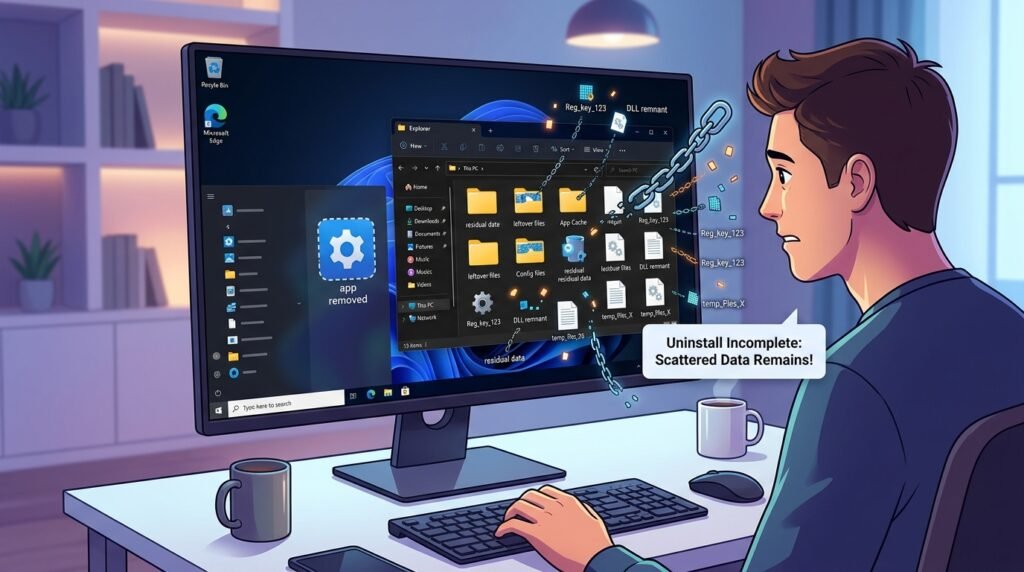
Windows 10 বা Windows 11 থেকে কোনো software, game, editing tool অথবা utility uninstall করার পরও যদি Program Files, AppData, Documents বা অন্য folder-এ তার file থেকে যায় এবং storage পুরোপুরি খালি না হয়, তাহলে এটি সবসময় uninstall ব্যর্থ হওয়ার লক্ষণ নয়।
অনেক application ভবিষ্যতে reinstall করলে আগের setting, login, project, game save বা license ফিরে পাওয়ার জন্য কিছু data ইচ্ছাকৃতভাবে রেখে দেয়। আবার কিছু software-এর uninstaller অসম্পূর্ণ হওয়া, application background-এ চলা, corrupted installation অথবা user permission সমস্যার কারণেও leftover file থেকে যেতে পারে।
সব leftover file অন্ধভাবে delete করা নিরাপদ নয়। কারণ ওই folder-এর মধ্যে গুরুত্বপূর্ণ project, game save, database, browser profile, accounting data অথবা license configuration থাকতে পারে।
তাই software uninstall করার আগে data backup এবং uninstall করার পর folder-এর purpose যাচাই করা জরুরি।
## Software Leftover File কী?
কোনো application uninstall হওয়ার পর computer-এ থেকে যাওয়া file, folder, cache, log, configuration অথবা startup entry-কে সাধারণভাবে leftover data বলা হয়।
এগুলো থাকতে পারে:
* Program Files
* Program Files (x86)
* AppData
* ProgramData
* Documents
* Downloads
* Saved Games
* Registry
* Startup folder
* Scheduled Tasks
* Windows Services
* Browser profile
* Temporary folder
* Game library
* Shared runtime folder
সব leftover file junk নয়।
## Software কেন Uninstall হওয়ার পরও Data রেখে দেয়?
Application বিভিন্ন কারণে data রেখে যেতে পারে:
* User preference সংরক্ষণ
* Account login data
* Project file রক্ষা
* Game save রাখা
* Reinstall-এর পর setting ফিরিয়ে দেওয়া
* License activation সংরক্ষণ
* Crash log রাখা
* Shared component অন্য application ব্যবহার করছে
* Cloud sync data
* Browser profile
* Database file
* Backup ও recovery file
* Uninstaller ত্রুটি
অনেক ভালো software uninstall-এর সময় জিজ্ঞেস করে:
* Remove user data
* Delete preferences
* Keep settings
* Remove saved files
* Delete cache
Option না বুঝে নির্বাচন করবেন না।
## Leftover File থাকার সাধারণ লক্ষণ
* Software uninstall হলেও storage খালি হয়নি
* Program Files-এ পুরোনো folder আছে
* AppData-তে software-এর নাম দেখা যায়
* Startup list-এ software আছে
* Reinstall করলে আগের setting ফিরে আসে
* Desktop shortcut থেকে যায়
* Right-click menu-তে software option থাকে
* Background service চালু থাকে
* Task Manager-এ process দেখা যায়
* Browser extension থেকে যায়
* Game save বা cache রয়ে গেছে
* Windows Search-এ পুরোনো entry আসে
* “File is in use” বলে folder delete হয় না
* Uninstall button কাজ করে না
* Installed Apps list-এ broken entry থাকে
## কাজ শুরুর আগে গুরুত্বপূর্ণ সতর্কতা
কোনো leftover folder delete করার আগে:
* Folder-এর ভেতরের file দেখুন
* গুরুত্বপূর্ণ project backup নিন
* Game save backup নিন
* Business database আছে কি না দেখুন
* License key সংরক্ষণ করুন
* Browser bookmark/profile যাচাই করুন
* Cloud sync complete কি না দেখুন
* System Restore Point তৈরি করুন
* Exact application name নিশ্চিত করুন
* Shared folder কি না দেখুন
নিচের folder অন্ধভাবে delete করবেন না:
* `C:\Windows`
* `C:\Program Files\Common Files`
* `C:\ProgramData`
* `System32`
* `WinSxS`
* DriverStore
* Microsoft shared runtime folder
* Unknown system folder
## ১. Software স্বাভাবিকভাবে Uninstall করুন
প্রথমে Windows-এর built-in uninstall option ব্যবহার করুন।
Windows 11-এ:
1. Settings খুলুন।
2. **Apps → Installed apps** এ যান।
3. Software খুঁজুন।
4. পাশের তিনটি dot menu চাপুন।
5. **Uninstall** নির্বাচন করুন।
6. On-screen instruction অনুসরণ করুন।
7. Computer restart করুন।
Windows 10-এ:
**Settings → Apps → Apps & features**
থেকে uninstall করা যায়।
শুধু application folder delete করা proper uninstall নয়।
## ২. Control Panel থেকে Uninstall করুন
কিছু পুরোনো desktop software Settings-এ সঠিকভাবে uninstall না হলে Control Panel ব্যবহার করুন।
1. `Windows + R` চাপুন।
2. লিখুন:
`appwiz.cpl`
3. Enter চাপুন।
4. Software নির্বাচন করুন।
5. **Uninstall** বা **Change** চাপুন।
6. Instruction অনুসরণ করুন।
Application-এর নিজস্ব uninstaller খুললে সব option পড়ুন।
## ৩. Application-এর নিজস্ব Uninstaller ব্যবহার করুন
কিছু software installation folder-এর মধ্যে নিজস্ব uninstaller রাখে।
File-এর নাম হতে পারে:
* `uninstall.exe`
* `unins000.exe`
* `uninstaller.exe`
* `setup.exe`
* `maintenance.exe`
Application-এর official uninstaller থাকলে সেটি ব্যবহার করুন।
Unknown executable administrator হিসেবে চালাবেন না।
## ৪. Uninstall করার আগে Application পুরোপুরি বন্ধ করুন
Application background-এ চালু থাকলে কিছু file remove হয় না।
1. Application close করুন।
2. System tray দেখুন।
3. Tray icon-এর ওপর right-click করে Exit দিন।
4. Task Manager খুলুন।
5. Software-এর process আছে কি না দেখুন।
6. প্রয়োজন হলে End Task করুন।
7. তারপর uninstall করুন।
Document, project বা download চললে আগে save করুন।
## ৫. Computer Restart করুন
Uninstall শেষ হওয়ার পর restart গুরুত্বপূর্ণ।
কারণ কিছু file:
* Reboot-এর পর delete হয়
* Service stop হওয়ার পর remove হয়
* Driver unload হওয়ার পর মুছে যায়
* Pending cleanup সম্পন্ন করে
Restart না দিয়ে folder delete করতে গেলে “File in use” error আসতে পারে।
## ৬. Program Files Folder পরীক্ষা করুন
Restart-এর পর নিচের location দেখুন:
`C:\Program Files`
এবং:
`C:\Program Files (x86)`
Uninstall করা software-এর নামে folder থাকলে খুলে দেখুন।
ভেতরে যদি শুধু থাকে:
* Empty folder
* Log
* Cache
* Old configuration
* Uninstaller residue
তাহলে delete করা যেতে পারে।
কিন্তু যদি থাকে:
* Project
* Database
* Preset
* Plugin
* Shared component
* License file
তাহলে আগে backup ও verification প্রয়োজন।
## ৭. Program Files এবং Program Files (x86)-এর পার্থক্য
64-bit Windows-এ সাধারণত:
* `Program Files` → 64-bit application
* `Program Files (x86)` → 32-bit application
একই software-এর file দুই জায়গায় থাকতে পারে।
Plugin, runtime ও shared library অন্য application ব্যবহার করতে পারে। তাই folder name মিললেই delete করবেন না।
## ৮. AppData Folder পরীক্ষা করুন
Application-এর user-specific setting সাধারণত AppData-তে থাকে।
`Windows + R` চাপুন এবং লিখুন:
`%appdata%`
এটি সাধারণত খুলবে:
`C:\Users\Username\AppData\Roaming`
এখানে software-এর নামে folder খুঁজুন।
তারপর Run box-এ লিখুন:
`%localappdata%`
এটি খুলবে:
`C:\Users\Username\AppData\Local`
এখানেও folder পরীক্ষা করুন।
## Roaming ও Local AppData-এর পার্থক্য
### Roaming
সাধারণত রাখে:
* User preference
* Profile
* Account setting
* Application configuration
* Plugin setting
### Local
সাধারণত রাখে:
* Cache
* Temporary data
* Local database
* Downloaded component
* Log
* Large application data
Uninstall-এর পর cache delete করা তুলনামূলক নিরাপদ হতে পারে, কিন্তু profile বা project folder backup ছাড়া delete করবেন না।
## ৯. LocalLow Folder পরীক্ষা করুন
কিছু application data রাখে:
`C:\Users\Username\AppData\LocalLow`
বিশেষ করে:
* Game
* Unity application
* Browser component
* Restricted-permission software
Uninstall করা software-এর folder থাকলে content যাচাই করুন।
## ১০. ProgramData Folder পরীক্ষা করুন
Run box-এ লিখুন:
`%programdata%`
এখানে computer-এর সব user-এর জন্য shared application data থাকতে পারে।
এখানে পাওয়া যেতে পারে:
* License data
* Shared configuration
* Update cache
* Database
* Service configuration
* Security software data
ProgramData থেকে file delete করার আগে বেশি সতর্ক থাকুন।
## ১১. Documents Folder পরীক্ষা করুন
অনেক software user-created file Documents-এ রাখে।
উদাহরণ:
* Adobe project
* Game save
* Accounting database
* Design preset
* Office template
* Application backup
* Virtual machine
* Music library
Software uninstall হওয়ার পরও Documents-এর data ইচ্ছাকৃতভাবে থেকে যায়।
এগুলো junk নয়।
## ১২. Saved Games Folder পরীক্ষা করুন
Game uninstall করার পর save data থাকতে পারে:
`C:\Users\Username\Saved Games`
এছাড়া save থাকতে পারে:
* Documents
* AppData
* ProgramData
* Steam Cloud
* Game launcher cloud
* Game installation folder
Game আবার খেলবেন বা progress রাখতে চান—তাহলে save delete করবেন না।
## ১৩. Desktop Shortcut থেকে গেলে
Software uninstall হওয়ার পর shortcut থেকে যেতে পারে।
Desktop shortcut-এর ওপর right-click করে **Delete** করুন।
Shortcut delete করলে মূল application বা data delete হয় না।
Start menu shortcut-এর ক্ষেত্রেও একই।
## ১৪. Start Menu Folder পরীক্ষা করুন
Shortcut থাকতে পারে:
`C:\ProgramData\Microsoft\Windows\Start Menu\Programs`
অথবা:
`C:\Users\Username\AppData\Roaming\Microsoft\Windows\Start Menu\Programs`
Uninstalled software-এর shortcut folder থাকলে delete করা যায়।
System shortcut delete করবেন না।
## ১৫. Startup Apps থেকে Entry সরান
Task Manager খুলুন:
`Ctrl + Shift + Esc`
তারপর **Startup apps** tab দেখুন।
Uninstalled software-এর entry থাকলে:
* Publisher দেখুন
* File location দেখুন
* Entry disable করুন
Broken startup entry computer-এর boot ধীর করতে পারে।
## ১৬. Startup Folder পরীক্ষা করুন
Run box-এ লিখুন:
`shell:startup`
এটি current user-এর Startup folder খুলবে।
সব user-এর জন্য:
`shell:common startup`
Uninstalled software-এর shortcut থাকলে delete করুন।
Unknown system বা security entry delete করবেন না।
## ১৭. Background Service থেকে গেছে কি না দেখুন
কিছু application uninstall হওয়ার পর service থেকে যেতে পারে।
1. `Windows + R` চাপুন।
2. লিখুন:
`services.msc`
3. Enter চাপুন।
4. Software বা publisher-এর নাম খুঁজুন।
দেখুন:
* Service status
* Startup type
* Executable path
* Publisher
Broken service থাকলে application-এর official cleanup tool ব্যবহার করুন।
Service না বুঝে Delete বা Disable করবেন না।
## ১৮. Scheduled Task পরীক্ষা করুন
Updater বা maintenance tool Task Scheduler-এ থেকে যেতে পারে।
1. Start menu-তে লিখুন:
`Task Scheduler`
2. Task Scheduler Library খুলুন।
3. Software বা publisher-এর task দেখুন।
4. Action path পরীক্ষা করুন।
File path আর নেই এবং task স্পষ্টভাবে uninstalled software-এর হলে remove করা যায়।
Microsoft বা driver-related task delete করবেন না।
## ১৯. Browser Extension আলাদাভাবে Remove করুন
Software uninstall হলেও browser extension থেকে যেতে পারে।
Chrome বা Edge-এ Extensions page খুলুন।
দেখুন:
* Toolbar
* Download manager extension
* VPN extension
* Password extension
* Shopping extension
* PDF extension
* Security extension
Unwanted extension remove করুন।
Browser profile sync চালু থাকলে extension আবার ফিরে আসতে পারে।
## ২০. Context Menu Entry থেকে গেলে
Right-click menu-তে uninstalled software-এর option থাকলে shell extension থেকে যেতে পারে।
যেমন:
* Scan with…
* Open with…
* Compress with…
* Edit with…
* Upload to…
Application-এর official cleanup বা reinstall-uninstall method ব্যবহার করুন।
Random Registry cleaner দিয়ে context menu পরিষ্কার করবেন না।
## ২১. File Association পরীক্ষা করুন
Software uninstall হওয়ার পর file double-click করলে broken application path দেখাতে পারে।
Settings থেকে:
**Apps → Default apps**
এ যান।
Relevant file type-এর জন্য নতুন default application নির্বাচন করুন।
উদাহরণ:
* PDF
* JPG
* MP4
* ZIP
* HTML
* DOCX
## ২২. Temporary File পরিষ্কার করুন
Windows Settings থেকে:
1. Settings খুলুন।
2. **System → Storage** এ যান।
3. **Temporary files** নির্বাচন করুন।
4. Categoryগুলো পর্যালোচনা করুন।
5. প্রয়োজনীয় item select করুন।
6. **Remove files** চাপুন।
Downloads folder option থাকলে সাবধানে নির্বাচন করুন।
## ২৩. Temp Folder পরিষ্কার করুন
Run box-এ লিখুন:
`%temp%`
Temporary folder খুলবে।
সব file select করে delete করুন।
যে file ব্যবহার হচ্ছে সেটি Skip করুন।
তারপর Run box-এ লিখুন:
`temp`
Administrator permission চাইতে পারে।
Personal folder বা installer source ভুল করে delete করবেন না।
## ২৪. Storage Sense ব্যবহার করুন
Windows Storage Sense নিয়মিত temporary file পরিষ্কার করতে পারে।
Path:
**Settings → System → Storage → Storage Sense**
এখানে configure করা যায়:
* Temporary file cleanup
* Recycle Bin cleanup
* Downloads cleanup
* Cloud file management
Downloads automatic delete option না বুঝে চালু করবেন না।
## ২৫. Recycle Bin খালি করুন
Uninstall বা manual delete-এর পর file Recycle Bin-এ থাকতে পারে।
Desktop থেকে Recycle Bin খুলে content দেখুন।
গুরুত্বপূর্ণ file নেই নিশ্চিত হলে:
**Empty Recycle Bin**
চাপুন।
Recycle Bin খালি না করলে storage পুরোপুরি free হবে না।
## ২৬. Windows Search পুরোনো Entry দেখালে
Uninstalled software search result-এ দেখালে:
* Shortcut থেকে যেতে পারে
* Search index update হয়নি
* Start menu cache
* Installer entry broken
Restart দিন এবং shortcut location পরীক্ষা করুন।
Search Index rebuild করা শেষ option হিসেবে বিবেচনা করুন।
## ২৭. Uninstall করার পর Storage সঙ্গে সঙ্গে বাড়ে না কেন?
সম্ভাব্য কারণ:
* Recycle Bin
* System Restore Point
* Installer cache
* AppData cache
* User project
* Game save
* Cloud offline file
* Windows storage calculation delay
* Shared runtime
* Pending restart
Computer restart এবং Storage Settings refresh করে আবার দেখুন।
## ২৮. Installer Cache Delete করা উচিত কি?
Windows Installer cache এবং application setup cache future repair, update বা uninstall-এর জন্য প্রয়োজন হতে পারে।
Randomভাবে নিচের location delete করবেন না:
* Windows Installer
* Package Cache
* Installer folder
* DriverStore
এগুলো delete করলে:
* Software repair ব্যর্থ
* Update ব্যর্থ
* Uninstall ব্যর্থ
* Driver rollback সমস্যা
হতে পারে।
## ২৯. Shared Runtime কেন থেকে যায়?
অনেক software shared component ব্যবহার করে:
* Microsoft Visual C++ Redistributable
* .NET Runtime
* Java
* DirectX component
* WebView2 Runtime
* Microsoft Edge runtime
* Database engine
একটি software uninstall হলেও runtime অন্য application ব্যবহার করতে পারে।
এসব শুধু storage খালি করার জন্য uninstall করবেন না।
## ৩০. Microsoft Visual C++ Package Delete করবেন না
Installed Apps-এ একাধিক Visual C++ entry দেখা স্বাভাবিক।
বিভিন্ন application বিভিন্ন version ও architecture ব্যবহার করে।
এগুলো remove করলে:
* Game launch error
* DLL missing
* Application crash
* Installer failure
হতে পারে।
## ৩১. .NET Runtime ও Desktop Runtime
অনেক Windows application .NET-এর ওপর নির্ভর করে।
একাধিক version পাশাপাশি থাকতে পারে।
কোন application ব্যবহার করে না নিশ্চিত না হলে remove করবেন না।
## ৩২. Java Version Remove করার আগে
Java-based business software, accounting tool, development environment বা game পুরোনো JRE ব্যবহার করতে পারে।
Java uninstall করার আগে:
* Application requirement
* 32-bit/64-bit
* JAVA_HOME
* PATH
* Vendor documentation
দেখুন।
## ৩৩. Game Launcher Uninstall করলে Game File থেকে যেতে পারে
Steam, Epic Games, EA App বা অন্য launcher uninstall করলেও game library অন্য drive-এ থেকে যেতে পারে।
Game folder অনেক বড় হতে পারে।
Delete করার আগে:
* Save data
* Mod
* Screenshot
* Workshop file
* Cloud sync
* Reinstall plan
বিবেচনা করুন।
## ৩৪. Steam Game পুরোপুরি Remove করার নিয়ম
Steam থেকে game uninstall করার পর library folder পরীক্ষা করুন।
Common location:
`SteamLibrary\steamapps\common`
এছাড়া mod বা workshop file থাকতে পারে।
Steam cloud sync থাকলেও সব game save cloud-এ রাখে না।
## ৩৫. Adobe Software Leftover
Adobe application uninstall হওয়ার পর থাকতে পারে:
* Creative Cloud component
* Media cache
* Preset
* Font
* Plugin
* Project
* Common library
* Licensing service
সব Adobe folder একসঙ্গে delete করলে অন্য Adobe application নষ্ট হতে পারে।
Official Creative Cloud uninstall বা cleanup tool প্রয়োজন হতে পারে।
## ৩৬. Antivirus Uninstall হওয়ার পর Service থেকে গেলে
Security software গভীর system component install করে।
সাধারণ uninstall-এর পরও থাকতে পারে:
* Driver
* Filter service
* Network component
* Browser extension
* Quarantine
* Update service
Vendor-এর official removal tool ব্যবহার করুন।
Random third-party uninstaller দিয়ে antivirus driver delete করা ঝুঁকিপূর্ণ।
## ৩৭. Printer Software Leftover
Printer uninstall করলেও থাকতে পারে:
* Driver
* Print queue
* Port
* Scanner software
* Utility
* Service
অন্য printer একই driver ব্যবহার করতে পারে।
Print Management বা manufacturer cleanup method ব্যবহার করুন।
## ৩৮. VPN Software Leftover
VPN uninstall হওয়ার পর virtual network adapter থেকে যেতে পারে।
Device Manager এবং Network Connections-এ দেখা যেতে পারে:
* TAP adapter
* WireGuard adapter
* VPN virtual adapter
Application-specific adapter নিশ্চিত না হয়ে delete করবেন না।
## ৩৯. VirtualBox বা VMware Uninstall করার পর
Leftover থাকতে পারে:
* Virtual machine
* Virtual disk
* Network adapter
* Driver
* ISO
* Snapshot
* Configuration
VM folder delete করলে virtual machine-এর data হারাবে।
Software uninstall এবং VM data delete আলাদা কাজ।
## ৪০. Python Package ও Environment থেকে যেতে পারে
Python uninstall হলেও থাকতে পারে:
* Virtual environment
* pip cache
* Project
* Scripts
* AppData package
* PATH entry
Project folder ও virtual environment delete করার আগে source code backup নিন।
## ৪১. Registry Entry থেকে যায় কেন?
Windows Registry-তে application-এর:
* Setting
* Uninstall entry
* File association
* License
* Context menu
* Startup path
থাকতে পারে।
কিছু orphan entry harmless।
কয়েকটি unused Registry entry সাধারণত noticeable storage বা performance সমস্যা তৈরি করে না।
## ৪২. Registry Cleaner ব্যবহার করা উচিত কি?
সাধারণভাবে প্রয়োজন নেই।
Registry cleaner ভুল key delete করলে:
* Software crash
* File association নষ্ট
* Windows Update সমস্যা
* Installer error
* Login problem
* Boot issue
হতে পারে।
Leftover folder পরিষ্কার করতে Registry cleaner বাধ্যতামূলক নয়।
## ৪৩. Manual Registry Edit কখন করবেন?
শুধু নির্দিষ্ট broken entry এবং exact key জানা থাকলে।
Edit করার আগে:
1. Registry Editor খুলুন।
2. Relevant key নির্বাচন করুন।
3. File → Export করুন।
4. Backup save করুন।
5. তারপর প্রয়োজনীয় পরিবর্তন করুন।
Full Registry export system restore-এর বিকল্প নয়।
Unknown key delete করবেন না।
## ৪৪. Broken Uninstall Entry
Installed Apps list-এ software দেখা যায়, কিন্তু uninstall করলে file missing error এলে installation corrupted হতে পারে।
সমাধান:
* একই version reinstall
* তারপর normal uninstall
* Official installer repair
* Vendor cleanup tool
* Microsoft install/uninstall troubleshooter
Random Registry entry delete করে list পরিষ্কার করলে মূল leftover থেকে যেতে পারে।
## ৪৫. Software Reinstall করে আবার Uninstall করুন
Uninstaller missing হলে:
1. Exact same বা compatible version installer নিন।
2. একই location-এ install বা repair করুন।
3. Computer restart দিন।
4. Normal uninstall করুন।
5. Leftover folder পরীক্ষা করুন।
Business software হলে data backup আগে নিন।
## ৪৬. Safe Mode-এ Folder Delete
Background process file lock করে রাখলে Safe Mode-এ folder delete করা যেতে পারে।
তবে আগে:
* Application uninstall
* Restart
* Task Manager
* Service
পরীক্ষা করুন।
Safe Mode-এ system folder delete করবেন না।
## ৪৭. “File Is Open in Another Program” Error
Folder delete না হলে:
1. Application বন্ধ করুন।
2. System tray থেকে Exit দিন।
3. Task Manager-এ process বন্ধ করুন।
4. File Explorer restart করুন।
5. Computer restart করুন।
6. আবার delete করুন।
অজানা system process জোর করে বন্ধ করবেন না।
## ৪৮. Access Denied Error
কারণ হতে পারে:
* Administrator permission
* File ownership
* Running service
* System-protected file
* Antivirus
* Encryption
* অন্য user account
Folder-এর owner ও purpose না বুঝে ownership পরিবর্তন করবেন না।
## ৪৯. Cloud Sync Folder থেকে গেলে
OneDrive, Google Drive বা Dropbox application uninstall হলেও synced local file থেকে যেতে পারে।
এগুলো user data।
Delete করলে cloud বা অন্য device-এও প্রভাব পড়তে পারে—sync status অনুযায়ী।
প্রথমে web account ও sync policy যাচাই করুন।
## ৫০. Browser Uninstall করলে Profile থেকে যায়
Chrome, Edge, Firefox বা অন্য browser uninstall হলেও থাকতে পারে:
* Bookmark
* Password
* History
* Extension
* Cache
* Profile
* Download
Browser পুনরায় install করলে এগুলো ফিরে আসতে পারে।
Profile delete করার আগে bookmark ও password export করুন।
## ৫১. Accounting Software Uninstall করার আগে
Accounting, POS বা inventory software-এর data থাকতে পারে:
* ProgramData
* Documents
* AppData
* SQL database
* Local server
* Backup folder
* License file
Software uninstall বা folder delete করার আগে verified backup নিন।
এ ধরনের data হারালে সাধারণ file recovery কঠিন হতে পারে।
## ৫২. Database Software Leftover
MySQL, PostgreSQL, SQL Server বা অন্য database software uninstall হলেও database data directory রেখে দিতে পারে।
এটি ইচ্ছাকৃত।
Folder delete করলে database স্থায়ীভাবে হারাতে পারেন।
Database dump ও backup ছাড়া delete করবেন না।
## ৫৩. User Profile Delete না করে Software Data সরান
Shared computer-এ শুধু application data সরানোর জন্য পুরো Windows user account delete করবেন না।
User profile-এর মধ্যে থাকতে পারে:
* Documents
* Desktop
* Downloads
* Browser data
* Email
* Project
* Credential
শুধু specific software folder শনাক্ত করুন।
## ৫৪. Third-Party Uninstaller ব্যবহার করা উচিত কি?
কিছু trusted uninstaller leftover scan করতে পারে, কিন্তু ঝুঁকি আছে।
সম্ভাব্য সমস্যা:
* Shared file delete
* Registry key remove
* Restore point না থাকা
* Wrong detection
* Bundled unwanted software
* Paid cleanup pressure
প্রথমে Windows uninstaller ও manual verification ব্যবহার করুন।
Unknown “PC Cleaner” install করবেন না।
## ৫৫. Portable Software কীভাবে Remove করবেন?
Portable software সাধারণত install হয় না।
Remove করতে:
1. Software বন্ধ করুন।
2. Portable folder backup বা delete করুন।
3. Shortcut delete করুন।
4. AppData configuration আছে কি না দেখুন।
5. File association থাকলে reset করুন।
Portable folder-এর project file আলাদা আছে কি না দেখুন।
## ৫৬. Microsoft Store App Reset ও Uninstall
Store app-এর ক্ষেত্রে:
1. Settings → Apps → Installed apps
2. App-এর Advanced options খুলুন
3. Terminate
4. Repair
5. Reset
6. Uninstall
Reset করলে local app data delete হতে পারে।
Uninstall-এর আগে login ও synced data নিশ্চিত করুন।
## ৫৭. Windows Built-in App Remove করার ক্ষেত্রে সতর্কতা
PowerShell দিয়ে built-in app remove করার অনেক script online-এ পাওয়া যায়।
এগুলো:
* Microsoft Store নষ্ট
* Start menu সমস্যা
* Dependency error
* Update failure
তৈরি করতে পারে।
শুধু storage খালি করার জন্য debloat script চালাবেন না।
## ৫৮. System Restore Point তৈরি করুন
Manual cleanup-এর আগে restore point তৈরি করা যেতে পারে।
1. Start menu-তে লিখুন:
`Create a restore point`
2. System Protection tab খুলুন।
3. C Drive protection On কি না দেখুন।
4. **Create** চাপুন।
5. Restore point-এর নাম দিন।
System Restore personal file backup নয়।
## ৫৯. Cleanup-এর পর Storage যাচাই করুন
সব cleanup শেষে:
1. Computer restart দিন।
2. Settings → System → Storage খুলুন।
3. Apps, Temporary Files ও Other category দেখুন।
4. File Explorer থেকে drive free space দেখুন।
5. Recycle Bin খালি করুন।
Storage calculation update হতে কিছু সময় লাগতে পারে।
## ৬০. Storage Analyzer ব্যবহার
বড় folder খুঁজতে trusted disk analyzer ব্যবহার করা যায়।
এটি দেখাতে পারে:
* কোন folder বেশি space নিচ্ছে
* AppData cache
* Game library
* VM disk
* Old backup
* Video file
* Installer archive
কিন্তু analyzer দেখালেই folder delete করা নিরাপদ নয়।
Folder-এর purpose যাচাই করুন।
## ৬১. System File Cleanup
Disk Cleanup খুলতে:
1. Start menu-তে লিখুন:
`Disk Cleanup`
2. C Drive নির্বাচন করুন।
3. **Clean up system files** চাপুন।
4. Category পর্যালোচনা করুন।
এখানে থাকতে পারে:
* Windows Update Cleanup
* Temporary files
* Delivery Optimization
* Recycle Bin
* Thumbnail
Downloads বা previous Windows installation delete করার আগে প্রয়োজন যাচাই করুন।
## ৬২. Windows.old Folder
Windows upgrade-এর পর `Windows.old` থাকতে পারে।
এটি পুরোনো Windows version-এ ফিরে যাওয়া ও old user file recovery-এর জন্য ব্যবহার হয়।
Settings বা Disk Cleanup দিয়ে remove করুন।
Manualভাবে ownership নিয়ে delete করা recommended নয়।
## ৬৩. Restore Point বেশি Storage নিলে
System Protection restore point storage ব্যবহার করতে পারে।
পুরোনো restore point delete করলে rollback option কমে যাবে।
Storage খুব কম না হলে শুধু space পাওয়ার জন্য সব restore point delete করবেন না।
## ৬৪. Hibernation File Software Leftover নয়
`hiberfil.sys` বড় file হলেও এটি কোনো uninstalled app-এর data নয়।
Windows hibernation ও Fast Startup ব্যবহার করে।
Randomভাবে delete করা যায় না।
Feature বন্ধ করলে system behavior বদলাবে।
## ৬৫. Pagefile Software Leftover নয়
`pagefile.sys` Windows virtual memory file।
এটি delete বা disable করলে:
* Application crash
* Low-memory error
* System instability
* Crash dump সমস্যা
হতে পারে।
এটি software junk নয়।
## ৬৬. WinSxS Folder Delete করবেন না
WinSxS Windows component store।
Folder বড় মনে হলেও manual delete করলে Windows Update ও system repair নষ্ট হতে পারে।
Windows-এর supported cleanup method ব্যবহার করুন।
## ৬৭. Driver Package থেকে যেতে পারে
Hardware software uninstall হলেও driver package থাকতে পারে।
Driver অন্য device বা future reconnection-এর জন্য প্রয়োজন হতে পারে।
Device Manager থেকে driver remove করার আগে exact device নিশ্চিত করুন।
## ৬৮. Malware বা Fake Software Leftover
Suspicious software uninstall করার পরও থাকতে পারে:
* Startup process
* Browser extension
* Scheduled task
* Service
* Temp executable
* Registry persistence
Windows Security দিয়ে:
* Full Scan
* Offline Scan
চালান।
Crack, activator ও unknown cleanup tool remove করুন।
## ৬৯. Uninstall-এর পর Advertisement বা Popup থাকলে
Application remove হলেও browser notification বা adware থাকতে পারে।
পরীক্ষা করুন:
* Browser extension
* Site notification
* Startup app
* Installed app
* Scheduled task
* Proxy
* DNS
* Malware scan
শুধু Program Files folder delete করলে adware পুরোপুরি নাও সরতে পারে।
## ৭০. Application আবার নিজে Install হচ্ছে
সম্ভাব্য কারণ:
* Organization policy
* Software deployment
* Microsoft Store auto restore
* Manufacturer utility
* Sync
* Another bundled installer
* Scheduled task
* Malware
Office computer হলে IT administrator-এর সঙ্গে যোগাযোগ করুন।
## ৭১. Uninstall করার আগে Backup Checklist
গুরুত্বপূর্ণ software হলে backup নিন:
* Project file
* Database
* License key
* Preset
* Plugin
* Template
* Game save
* Browser bookmark
* Email
* Configuration
* Exported settings
* Cloud sync status
Backup খুলে যাচাই না করা পর্যন্ত folder delete করবেন না।
## ৭২. Safe Cleanup Flow
Software পুরোপুরি remove করতে এই sequence অনুসরণ করুন:
1. Application data backup
2. Account sign out বা deactivate
3. Application close
4. Normal uninstall
5. Computer restart
6. Program Files folder যাচাই
7. AppData folder যাচাই
8. ProgramData সতর্কভাবে দেখুন
9. Startup ও service পরীক্ষা
10. Browser extension remove
11. Temp ও Recycle Bin পরিষ্কার
12. Storage পুনরায় যাচাই
13. Malware scan, প্রয়োজন হলে
## Account Deactivate কেন প্রয়োজন?
কিছু paid software limited device activation ব্যবহার করে।
Uninstall-এর আগে account deactivate না করলে license slot আটকে থাকতে পারে।
বিশেষ করে:
* Adobe
* Design software
* Accounting software
* Security software
* CAD application
* Professional plugin
Vendor instruction অনুসরণ করুন।
## যেসব কাজ করবেন না
* শুধু folder delete করে software uninstall করবেন না
* ProgramData অন্ধভাবে পরিষ্কার করবেন না
* Common Files folder delete করবেন না
* Registry cleaner ব্যবহার করবেন না
* Visual C++ runtime remove করবেন না
* .NET component অনুমান করে uninstall করবেন না
* Database backup ছাড়া folder delete করবেন না
* Game save যাচাই ছাড়া AppData মুছবেন না
* Windows Installer cache delete করবেন না
* Unknown PC cleaner install করবেন না
* System folder ownership নিয়ে delete করবেন না
* Cloud sync data না বুঝে remove করবেন না
* Antivirus driver manually delete করবেন না
* VM folder software leftover মনে করে delete করবেন না
## কখন Professional সাহায্য প্রয়োজন?
নিচের অবস্থায় technician বা software support নিন:
* Software uninstall হয় না
* Broken uninstall entry
* Storage অনেক কমেছে কিন্তু file খুঁজে পাচ্ছেন না
* Business application
* Accounting database
* Antivirus removal
* Printer বা scanner driver
* VPN virtual adapter
* VirtualBox বা VMware data
* Browser adware
* Service বা scheduled task থেকে যাচ্ছে
* Access denied
* Registry error
* Game save বা project backup দরকার
* AppData folder-এর purpose বুঝতে সমস্যা
* গুরুত্বপূর্ণ software পুনরায় install করতে হবে
## দিনাজপুরে Software Uninstall ও Windows Cleanup Service
Software uninstall করার পরও file, folder, cache, startup entry বা service থেকে গেলে Dinajpur IT Park-এ যোগাযোগ করতে পারেন।
আমরা প্রয়োজন অনুযায়ী সহায়তা করি:
* Software clean uninstall
* Program Files cleanup
* AppData ও ProgramData audit
* Startup app cleanup
* Broken uninstall entry
* Browser extension ও adware removal
* Antivirus removal
* Printer ও VPN software cleanup
* Storage analysis
* Temporary file cleanup
* Malware scan
* Important data backup
* Software reinstall
**Dinajpur IT Park**
নিউটাউন ৩ নং বাজার, সদর, দিনাজপুর
মোবাইল: 01676-620232
বিকল্প মোবাইল: 01773-975423
WhatsApp: 01676-620232
Business software, accounting database, game save বা গুরুত্বপূর্ণ project থাকলে leftover folder delete করার আগে backup ও data location যাচাই করুন।
## সাধারণ প্রশ্ন ও উত্তর
### Software uninstall করার পরও folder থাকে কেন?
Application setting, cache, project, license, game save বা reinstall preference সংরক্ষণের জন্য folder থেকে যেতে পারে।
### Program Files-এর leftover folder delete করা যাবে?
Folder-এর মধ্যে শুধু cache বা empty file থাকলে করা যেতে পারে। Shared component, project বা database থাকলে আগে যাচাই করুন।
### AppData delete করলে কী হবে?
Application setting, login, cache, game save বা user profile মুছে যেতে পারে। শুধু specific software folder শনাক্ত করে delete করুন।
### Registry cleaner ব্যবহার করা দরকার?
সাধারণত নয়। কয়েকটি unused Registry entry উল্লেখযোগ্য performance সমস্যা তৈরি করে না, কিন্তু ভুল cleanup Windows বা software নষ্ট করতে পারে।
### Uninstall করার পর Storage কেন খালি হয়নি?
Recycle Bin, AppData cache, game data, project, cloud offline file, restore point অথবা pending restart-এর কারণে হতে পারে।
### ProgramData folder delete করা নিরাপদ?
পুরো ProgramData delete করা নিরাপদ নয়। এতে shared configuration, license, database ও service data থাকে।
### Visual C++ Redistributable কি uninstall করব?
না, শুধু কোনো application remove হয়েছে বলে Visual C++ package remove করবেন না। অন্য software এগুলো ব্যবহার করতে পারে।
### Game uninstall করলে Save Data থাকবে?
অনেক game save AppData, Documents, Saved Games বা cloud-এ রাখে। Game অনুযায়ী location ভিন্ন।
### Broken software uninstall কীভাবে করব?
একই software আবার install বা repair করে normal uninstall করুন। প্রয়োজনে official cleanup tool ব্যবহার করুন।
### Third-party uninstaller ব্যবহার করা কি নিরাপদ?
Trusted tool limitedভাবে ব্যবহার করা যায়, তবে shared file বা Registry key ভুলভাবে delete হওয়ার ঝুঁকি থাকে।
### Temp Folder-এর সব file delete করা যাবে?
বেশিরভাগ temporary file delete করা যায়। ব্যবহৃত file Skip করুন এবং personal Downloads folder-এর সঙ্গে গুলিয়ে ফেলবেন না।
### Software uninstall করার জন্য Windows reinstall দরকার?
সাধারণত নয়। Built-in uninstaller, official cleanup tool এবং manual verification যথেষ্ট।
## শেষ কথা
Software uninstall করার পর file থেকে যাওয়া সবসময় সমস্যা নয়। অনেক application user setting, project, game save, license বা backup ইচ্ছাকৃতভাবে রেখে দেয়।
প্রথমে Windows Settings বা Control Panel থেকে স্বাভাবিকভাবে uninstall করুন, তারপর computer restart দিন। এরপর Program Files, AppData, ProgramData, Documents, Startup এবং browser extension ধাপে ধাপে পরীক্ষা করুন।
Registry cleaner, unknown PC cleanup tool অথবা random folder deletion ব্যবহার করবেন না। বিশেষ করে business software, accounting database, game save, browser profile, virtual machine এবং paid license থাকলে data backup ও folder-এর purpose নিশ্চিত না হয়ে কিছু delete করা উচিত নয়।