
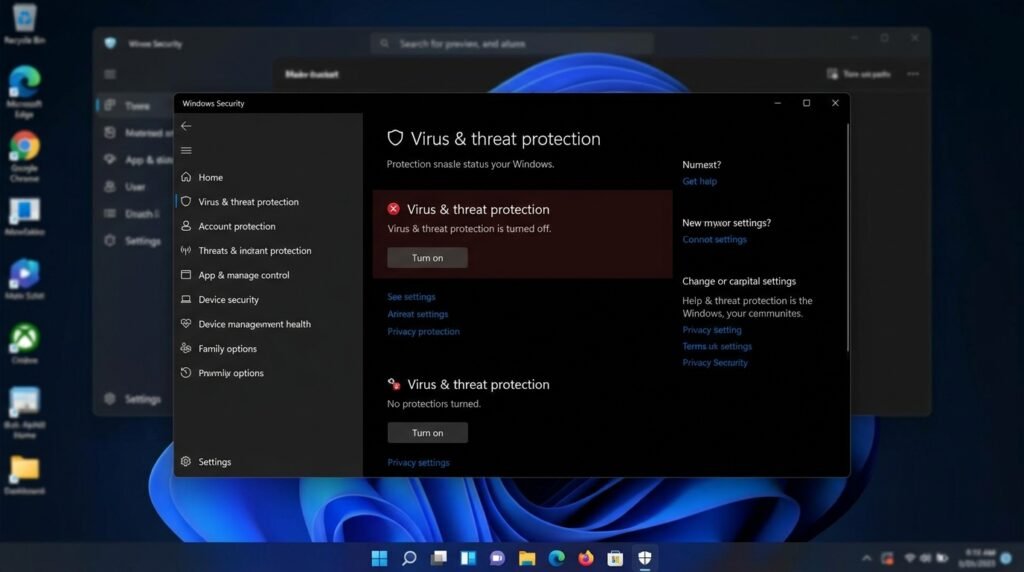
Windows Defender Service Off থাকলে কম্পিউটার Real-time Protection, Virus Scan এবং Malware Detection থেকে সঠিক সুরক্ষা নাও পেতে পারে। অনেক সময় Windows Security খুললে Blank Screen দেখা যায়, “Virus & threat protection is managed by your organization” লেখা আসে, Real-time Protection চালু করা যায় না অথবা Microsoft Defender Antivirus Service নিজে থেকেই বন্ধ হয়ে যায়।
Windows Defender Service Off সমস্যার কারণ হতে পারে Third-party Antivirus, ভুল Group Policy, Registry পরিবর্তন, Corrupted System File, Malware, Windows Security Service বন্ধ থাকা অথবা অসম্পূর্ণ Windows Update। সমস্যাটি সমাধান করতে Defender চালু করার আগে অন্য Antivirus, Service Status, Policy এবং Windows System File পরীক্ষা করা জরুরি।
## Windows Defender Service কী?
Windows Defender বর্তমানে Microsoft Defender Antivirus নামে পরিচিত। এটি Windows 10 ও Windows 11-এর Built-in Security System।
এর প্রধান কাজ:
• Virus ও Malware শনাক্ত করা
• Real-time Protection দেওয়া
• Download করা File Scan করা
• Suspicious Application Block করা
• Ransomware Protection দেওয়া
• Cloud-delivered Protection ব্যবহার করা
• Windows Firewall ও Security Status দেখানো
• Offline Scan চালানো
Microsoft Defender-এর সঙ্গে একাধিক Windows Service কাজ করে। কোনো Service বন্ধ থাকলে Windows Security-এর কিছু Feature কাজ নাও করতে পারে।
## Windows Defender Service Off সমস্যার লক্ষণ
সমস্যা হলে সাধারণত নিচের লক্ষণগুলো দেখা যায়:
• Windows Security খুলছে না
• Virus & threat protection Option নেই
• Real-time Protection চালু করা যাচ্ছে না
• Defender নিজে থেকেই Off হয়ে যাচ্ছে
• “Threat service has stopped” লেখা আসছে
• “Restart now” চাপলেও কাজ হচ্ছে না
• “This app has been turned off by group policy” দেখাচ্ছে
• “Managed by your organization” Message আসছে
• Microsoft Defender Antivirus Service Disabled
• Windows Security Blank Screen দেখাচ্ছে
• Defender Update ব্যর্থ হচ্ছে
• Scan Option কাজ করছে না
• Firewall ও Security Notification বন্ধ
• Malware Detection বন্ধ হয়ে গেছে
## Windows Defender Service Off হওয়ার কারণ
### ১. Third-party Antivirus Install থাকা
Avast, AVG, Kaspersky, Bitdefender, Norton বা অন্য Antivirus Install থাকলে Windows অনেক সময় Defender-এর Real-time Protection স্বয়ংক্রিয়ভাবে বন্ধ করে।
### ২. Antivirus পুরোপুরি Uninstall না হওয়া
পুরোনো Antivirus Remove করার পরও Driver, Service বা Registry Entry থেকে গেলে Defender চালু নাও হতে পারে।
### ৩. Group Policy থেকে Defender Disable করা
কিছু User বা Organization Policy ব্যবহার করে Defender বন্ধ করে রাখতে পারে।
### ৪. Registry পরিবর্তন
Tweaking Tool, Debloat Script বা Unauthorized Activator Registry পরিবর্তন করে Defender Disable করতে পারে।
### ৫. Malware Attack
কিছু Malware শনাক্ত হওয়া এড়াতে Defender Service বন্ধ করার চেষ্টা করে।
### ৬. Windows Security Service বন্ধ থাকা
Security Center, Windows Security Service বা related Service Disabled হলে Defender Status সঠিকভাবে দেখা যায় না।
### ৭. Corrupted System File
Windows Security Application বা Defender Component Corrupt হলে Service চালু হতে পারে না।
### ৮. Windows Update অসম্পূর্ণ থাকা
পুরোনো Build বা ব্যর্থ Update-এর কারণে Defender Service Error হতে পারে।
### ৯. Organization-managed Device
Office, School বা Company Computer হলে Administrator Policy অনুযায়ী Defender বন্ধ থাকতে পারে।
## প্রথমে অন্য Antivirus আছে কি না পরীক্ষা করুন
Settings > Apps > Installed apps খুলুন।
নিচের ধরনের Security Software আছে কি না দেখুন:
• Antivirus
• Internet Security
• Endpoint Protection
• Anti-malware Tool
• Security Suite
Third-party Antivirus সক্রিয় থাকলে Defender-এর Real-time Protection বন্ধ থাকা স্বাভাবিক হতে পারে।
একই সঙ্গে দুইটি Real-time Antivirus চালানো উচিত নয়। এতে Conflict, High CPU Usage এবং System Slow হওয়ার সমস্যা তৈরি হতে পারে।
## সমাধান ১: Computer Restart করুন
Temporary Service Error হলে Restart-এ সমস্যা ঠিক হতে পারে।
১. সব Application বন্ধ করুন।
২. Start Menu খুলুন।
৩. Power > Restart নির্বাচন করুন।
৪. Restart-এর পর Windows Security পরীক্ষা করুন।
Shut down-এর পরিবর্তে Restart ব্যবহার করা ভালো, কারণ Fast Startup পুরোনো System State ধরে রাখতে পারে।
## সমাধান ২: Windows Security থেকে Defender চালু করুন
Windows 11 ও Windows 10-এ:
Settings > Privacy & security > Windows Security
অথবা:
Settings > Update & Security > Windows Security
এরপর:
Virus & threat protection > Manage settings
চালু করুন:
• Real-time protection
• Cloud-delivered protection
• Automatic sample submission
• Tamper Protection
Option Greyed out থাকলে Policy, Service বা Third-party Antivirus সমস্যা থাকতে পারে।
## সমাধান ৩: Security Center Service পরীক্ষা করুন
Windows + R চাপুন এবং লিখুন:
services.msc
Enter চাপুন।
Security Center Service খুঁজুন।
পরীক্ষা করুন:
• Status: Running
• Startup Type: Automatic (Delayed Start)
Service বন্ধ থাকলে Right-click > Start করুন।
Startup Type ভুল থাকলে Properties থেকে Automatic (Delayed Start) নির্বাচন করুন।
## সমাধান ৪: Windows Security Service পরীক্ষা করুন
Services Window-এ Windows Security Service খুঁজুন।
Service Name কিছু System-এ SecurityHealthService হিসেবে দেখা যেতে পারে।
Service বন্ধ থাকলে Start করার চেষ্টা করুন।
তবে কিছু Protected Service-এর Setting Manualভাবে পরিবর্তন করা যায় না। Error হলে Registry পরিবর্তন না করে System Repair ব্যবহার করুন।
## সমাধান ৫: Microsoft Defender Antivirus Service পরীক্ষা করুন
Services Window-এ নিচের Serviceগুলো দেখুন:
• Microsoft Defender Antivirus Service
• Microsoft Defender Antivirus Network Inspection Service
• Microsoft Defender Core Service
কিছু Service Protected হওয়ায় Manual Startup Type পরিবর্তন করা নাও যেতে পারে।
Third-party Antivirus Remove করার পরও Service চালু না হলে Restart, Windows Update এবং System File Repair করুন।
## সমাধান ৬: Third-party Antivirus Uninstall করুন
Defender ব্যবহার করতে চাইলে অন্য Antivirus সম্পূর্ণ Remove করুন।
Settings > Apps > Installed apps
Antivirus নির্বাচন করে Uninstall চাপুন।
এরপর Computer Restart করুন।
সাধারণ Uninstall-এর পরও সমস্যা থাকলে Antivirus Manufacturer-এর Official Removal Tool ব্যবহার করুন।
Random Uninstaller বা Registry Cleaner ব্যবহার করবেন না।
## সমাধান ৭: পুরোনো Antivirus-এর残余 File Remove করুন
Antivirus Remove করার পরও Defender Off থাকলে Manufacturer Cleanup Tool ব্যবহার করতে হতে পারে।
Cleanup Tool সাধারণত Remove করে:
• Antivirus Service
• Driver
• Registry Entry
• Network Filter
• Security Policy
• Scheduled Task
শুধু Official Cleanup Tool ব্যবহার করুন।
## সমাধান ৮: Windows Security App Repair করুন
Windows 11-এ:
Settings > Apps > Installed apps > Windows Security > Advanced options
কিছু Version-এ Windows Security সরাসরি App List-এ নাও দেখা যেতে পারে।
Option থাকলে প্রথমে:
Repair
কাজ না করলে:
Reset
Reset করার পর Computer Restart করুন।
## সমাধান ৯: PowerShell দিয়ে Windows Security Re-register করুন
Administrator PowerShell খুলে নিচের Command চালানো যেতে পারে:
Get-AppxPackage Microsoft.SecHealthUI -AllUsers | Reset-AppxPackage
Command কাজ না করলে বা Reset-AppxPackage Support না করলে নিচের Command ব্যবহার করা যেতে পারে:
Get-AppxPackage Microsoft.SecHealthUI -AllUsers | ForEach-Object {Add-AppxPackage -DisableDevelopmentMode -Register “$($_.InstallLocation)\AppXManifest.xml”}
Command শেষ হলে Computer Restart করুন।
## সমাধান ১০: Group Policy পরীক্ষা করুন
Windows Pro, Enterprise বা Education Edition-এ Group Policy Editor ব্যবহার করা যায়।
Windows + R চাপুন এবং লিখুন:
gpedit.msc
এরপর যান:
Computer Configuration > Administrative Templates > Windows Components > Microsoft Defender Antivirus
“Turn off Microsoft Defender Antivirus” Policy খুলুন।
সেটি:
Not Configured
অথবা:
Disabled
করুন।
Enabled থাকলে Defender বন্ধ থাকবে।
পরিবর্তনের পর Apply, OK এবং Restart করুন।
## সমাধান ১১: Real-time Protection Policy পরীক্ষা করুন
Group Policy Editor-এ যান:
Computer Configuration > Administrative Templates > Windows Components > Microsoft Defender Antivirus > Real-time Protection
নিচের Policyগুলো Not Configured রাখুন:
• Turn off real-time protection
• Turn on behavior monitoring সম্পর্কিত ভুল Policy
• Scan all downloaded files সম্পর্কিত Disable Policy
Policy নাম Windows Version অনুযায়ী সামান্য ভিন্ন হতে পারে।
## সমাধান ১২: “Managed by Your Organization” Message ঠিক করুন
Personal Computer-এ এই Message এলে সম্ভাব্য কারণ:
• Group Policy পরিবর্তন
• Registry Tweaking
• Debloat Script
• Antivirus Policy
• Work or School Account
• Malware
প্রথমে Settings > Accounts > Access work or school খুলুন।
অপ্রয়োজনীয় Organization Account Connected থাকলে Disconnect করুন।
Office বা Company Computer হলে Administrator-এর অনুমতি ছাড়া Policy পরিবর্তন করবেন না।
## সমাধান ১৩: Registry Policy পরীক্ষা করুন
Registry ভুলভাবে পরিবর্তন করা ঝুঁকিপূর্ণ। পরিবর্তনের আগে Restore Point বা Registry Backup নিন।
Windows + R চাপুন এবং লিখুন:
regedit
তারপর নিচের Path পরীক্ষা করুন:
HKEY_LOCAL_MACHINE\SOFTWARE\Policies\Microsoft\Windows Defender
DisableAntiSpyware বা DisableAntiVirus Value থাকলে সেটি পুরোনো Policy বা Tool থেকে তৈরি হতে পারে।
Personal Computer-এ এবং অন্য Antivirus না থাকলে Value Delete বা 0 করা যেতে পারে।
তবে ভুল Registry পরিবর্তনে Windows Security ক্ষতিগ্রস্ত হতে পারে। অভিজ্ঞতা না থাকলে Technician-এর সাহায্য নিন।
## সমাধান ১৪: Tamper Protection পরীক্ষা করুন
Tamper Protection Defender Setting অননুমোদিতভাবে পরিবর্তন হওয়া থেকে রক্ষা করে।
Windows Security > Virus & threat protection > Manage settings
Tamper Protection চালু করুন।
Option না থাকলে Defender Service, Policy বা Account Restriction পরীক্ষা করুন।
## সমাধান ১৫: Windows Update করুন
Settings > Windows Update > Check for updates
Available Update Install করুন।
বিশেষভাবে পরীক্ষা করুন:
• Security Intelligence Update
• Microsoft Defender Update
• Cumulative Update
• Servicing Stack Update
Update শেষে Restart করুন।
## সমাধান ১৬: Defender Definition Update করুন
Windows Security > Virus & threat protection > Protection updates
এরপর Check for updates চাপুন।
Administrator Command Prompt থেকে Defender Update করার জন্য ব্যবহার করা যেতে পারে:
“%ProgramFiles%\Windows Defender\MpCmdRun.exe” -SignatureUpdate
Path বা Command Windows Version অনুযায়ী ভিন্ন হতে পারে।
## সমাধান ১৭: System File Checker চালান
Administrator Command Prompt খুলে লিখুন:
sfc /scannow
Scan সম্পূর্ণ হওয়া পর্যন্ত অপেক্ষা করুন।
Corrupted File Repair হলে Computer Restart করুন।
## সমাধান ১৮: DISM Repair চালান
SFC সমস্যার সমাধান না করলে Administrator Command Prompt-এ লিখুন:
DISM /Online /Cleanup-Image /RestoreHealth
Process শেষ হলে আবার লিখুন:
sfc /scannow
এরপর Restart করে Windows Security পরীক্ষা করুন।
## সমাধান ১৯: Windows Management Instrumentation পরীক্ষা করুন
Security Status ভুল দেখালে WMI সমস্যা থাকতে পারে।
Services Window-এ Windows Management Instrumentation Service Running আছে কি না দেখুন।
Service বন্ধ থাকলে Start করুন।
WMI Repository Reset অপ্রয়োজনীয়ভাবে করবেন না, কারণ এতে অন্য Application প্রভাবিত হতে পারে।
## সমাধান ২০: Defender Status PowerShell দিয়ে দেখুন
Administrator PowerShell খুলে লিখুন:
Get-MpComputerStatus
এখানে দেখা যেতে পারে:
• AntivirusEnabled
• RealTimeProtectionEnabled
• BehaviorMonitorEnabled
• AMServiceEnabled
• AntivirusSignatureLastUpdated
False দেখালে Defender Service, Policy বা Third-party Antivirus পরীক্ষা করুন।
## সমাধান ২১: Defender Service চালু করার Command
Administrator Command Prompt-এ নিচের Command দিয়ে Service Status দেখা যেতে পারে:
sc query WinDefend
Service Start করার চেষ্টা:
sc start WinDefend
Access Denied বা Service Disabled দেখালে Policy, Antivirus বা Protected Service সমস্যা থাকতে পারে।
Protected Service জোর করে Registry থেকে পরিবর্তন করবেন না।
## সমাধান ২২: Windows Security Center Reset করুন
Security Center Status ভুল দেখালে Administrator Command Prompt-এ লিখুন:
sc query wscsvc
Service বন্ধ থাকলে:
sc start wscsvc
Service চালু না হলে SFC এবং DISM Repair করুন।
## সমাধান ২৩: Clean Boot করুন
Third-party Software Conflict শনাক্ত করতে:
১. Windows + R চাপুন।
২. লিখুন:
msconfig
৩. Services Tab খুলুন।
৪. Hide all Microsoft services নির্বাচন করুন।
৫. Disable all চাপুন।
৬. Startup apps Task Manager থেকে Disable করুন।
৭. Computer Restart করুন।
Clean Boot-এ Defender চালু হলে কোনো Third-party Service Conflict তৈরি করছে।
## সমাধান ২৪: Safe Mode-এ পরীক্ষা করুন
Safe Mode-এ Windows Security Application পুরোপুরি কাজ নাও করতে পারে, তবে Malware, Driver বা Third-party Conflict শনাক্ত করতে এটি সহায়ক।
Safe Mode-এ:
• Suspicious Software Remove করুন
• Antivirus Cleanup Tool চালান
• SFC Scan করুন
• Startup Entry পরীক্ষা করুন
## সমাধান ২৫: Malware Scan চালান
Defender Service নিজে থেকেই বন্ধ হলে Malware সন্দেহ করা উচিত।
Defender চালু করা গেলে Full Scan চালান।
Windows Security > Virus & threat protection > Scan options > Full scan
আরও গভীর Scan-এর জন্য:
Microsoft Defender Offline scan
Offline Scan Computer Restart করে Windows Load হওয়ার আগে Scan চালায়।
## সমাধান ২৬: অন্য Trusted Scanner ব্যবহার করুন
Defender চালু না হলে একটি Trusted On-demand Malware Scanner ব্যবহার করা যেতে পারে।
তবে একই সঙ্গে একাধিক Real-time Antivirus Install করবেন না।
Portable বা On-demand Scanner ব্যবহার শেষে Remove করুন এবং Defender পুনরায় পরীক্ষা করুন।
## সমাধান ২৭: Debloat Script বা Privacy Tool Remove করুন
কিছু Debloat Tool Windows Defender, Telemetry, Update এবং Security Service Disable করে।
সম্প্রতি Script বা Tweaking Tool ব্যবহার করলে:
• Restore default settings ব্যবহার করুন
• Tool-এর Undo Option চালান
• System Restore ব্যবহার করুন
• Policy ও Registry পরীক্ষা করুন
Unknown Script Administrator হিসেবে চালানো থেকে বিরত থাকুন।
## সমাধান ২৮: Unauthorized Activator Remove করুন
কিছু Windows বা Office Activator Defender বন্ধ করে Scheduled Task, Service এবং Exclusion তৈরি করে।
এ ধরনের Tool থাকলে:
• Internet Disconnect করুন
• Tool Remove করুন
• Suspicious Scheduled Task Delete করুন
• Defender Offline Scan চালান
• SFC ও DISM Repair করুন
• Password পরিবর্তন করুন
• বৈধ License ব্যবহার করুন
Activator-এর কারণে Defender বন্ধ থাকা গুরুতর Security Risk।
## সমাধান ২৯: Defender Exclusion পরীক্ষা করুন
Malware বা Script গুরুত্বপূর্ণ Folder Exclusion-এ যোগ করতে পারে।
Windows Security > Virus & threat protection > Manage settings > Exclusions
অপরিচিত Exclusion Remove করুন।
তবে প্রয়োজনীয় Business Software-এর Exclusion না বুঝে Remove করবেন না।
## সমাধান ৩০: System Restore ব্যবহার করুন
সমস্যা শুরু হওয়ার আগে Restore Point থাকলে:
Windows + R চাপুন এবং লিখুন:
rstrui
Restore Point নির্বাচন করুন।
System Restore Personal File সাধারণত Delete করে না, তবে সাম্প্রতিক Driver, Update ও Software Remove হতে পারে।
## সমাধান ৩১: নতুন User Account দিয়ে পরীক্ষা করুন
Windows Security শুধু একটি User Profile-এ সমস্যা করলে নতুন Local বা Microsoft Account তৈরি করে পরীক্ষা করুন।
Settings > Accounts > Other users > Add account
নতুন Account-এ Windows Security ঠিকভাবে খুললে পুরোনো User Profile Corrupt হতে পারে।
## সমাধান ৩২: Windows Security Blank Screen সমাধান
Windows Security Blank বা Black Screen দেখালে:
• App Repair বা Reset করুন
• PowerShell দিয়ে Re-register করুন
• Windows Update করুন
• SFC ও DISM চালান
• SecurityHealthService পরীক্ষা করুন
• নতুন User Account দিয়ে Test করুন
শুধু Interface Blank হলেও Defender Background-এ চলতে পারে। Get-MpComputerStatus দিয়ে Status যাচাই করুন।
## “Threat Service Has Stopped” সমাধান
এই Message এলে:
১. Restart now চাপুন।
২. Computer Restart করুন।
৩. Third-party Antivirus পরীক্ষা করুন।
৪. WinDefend Service Status দেখুন।
৫. Windows Update করুন।
৬. SFC ও DISM চালান।
৭. Group Policy পরীক্ষা করুন।
৮. Malware Scan করুন।
Service বারবার বন্ধ হলে Malware বা System Corruption সন্দেহ করুন।
## Real-time Protection নিজে থেকেই বন্ধ হলে
সম্ভাব্য কারণ:
• অন্য Antivirus
• Malware
• Tamper Protection বন্ধ
• Policy পরিবর্তন
• Service Crash
• Corrupted Defender Component
• Unauthorized Activator
Event Viewer থেকে Service Error পরীক্ষা করা যেতে পারে।
## Event Viewer পরীক্ষা করুন
Windows + X > Event Viewer
তারপর:
Applications and Services Logs > Microsoft > Windows > Windows Defender > Operational
এখানে Defender Error, Scan Failure এবং Service Event দেখা যেতে পারে।
Error Code লিখে রাখলে Diagnosis সহজ হয়।
## Defender High CPU ব্যবহার করলে বন্ধ করবেন কি?
Microsoft Defender Scan চলার সময় Antimalware Service Executable CPU বা Disk ব্যবহার করতে পারে।
এ কারণে Defender স্থায়ীভাবে বন্ধ করা উচিত নয়।
সমাধান:
• Scan শেষ হতে দিন
• Scan Schedule পরিবর্তন করুন
• Large Trusted Folder প্রয়োজন হলে Exclusion বিবেচনা করুন
• Duplicate Antivirus Remove করুন
• Windows Update করুন
• Malware Scan সম্পূর্ণ করুন
অপ্রয়োজনীয় Exclusion Security Risk বাড়ায়।
## Windows Home Edition-এ Group Policy না থাকলে
Windows Home-এ gpedit.msc সাধারণত পাওয়া যায় না।
এক্ষেত্রে:
• Windows Security Settings
• Registry Policy
• PowerShell Status
• Antivirus Removal
• SFC ও DISM
• Windows Update
ব্যবহার করুন।
Internet থেকে অননুমোদিত Group Policy Installer ব্যবহার করবেন না।
## Organization Computer হলে কী করবেন?
Company, School বা Office Device হলে Defender Policy Administrator নিয়ন্ত্রণ করতে পারেন।
এক্ষেত্রে:
• Policy নিজে পরিবর্তন করবেন না
• IT Department-এর সঙ্গে যোগাযোগ করুন
• Organization VPN বা Network Connect করুন
• Endpoint Security Software আছে কি না দেখুন
“Managed by your organization” Message এই ধরনের Device-এ স্বাভাবিক হতে পারে।
## Defender স্থায়ীভাবে বন্ধ রাখা কি নিরাপদ?
না। Defender বা অন্য কোনো Trusted Real-time Antivirus ছাড়া Windows ব্যবহার করলে ঝুঁকি বাড়ে।
সম্ভাব্য ঝুঁকি:
• Virus Infection
• Ransomware
• Password Theft
• Banking Data চুরি
• Browser Hijacking
• Crypto Miner
• Spyware
• File Corruption
অন্য Antivirus ব্যবহার না করলে Defender চালু রাখা উচিত।
## Defender চালু হওয়ার পর যে Settingগুলো পরীক্ষা করবেন
Defender ঠিক হওয়ার পর নিশ্চিত করুন:
• Real-time Protection On
• Cloud-delivered Protection On
• Automatic Sample Submission On
• Tamper Protection On
• Firewall On
• Security Intelligence Updated
• Exclusion List পরিচিত
• Full Scan সম্পন্ন
• Windows Update সম্পূর্ণ
## Windows Reset কখন প্রয়োজন?
সব পদ্ধতি ব্যর্থ হলে Reset this PC ব্যবহার করা যায়।
Settings > System > Recovery > Reset this PC
Option:
• Keep my files
• Remove everything
Reset-এর আগে গুরুত্বপূর্ণ File Backup নিন।
Keep my files Personal File রাখলেও Installed Application Remove হতে পারে।
## Clean Install কখন প্রয়োজন?
নিচের অবস্থায় Clean Windows Install বিবেচনা করা যায়:
• Defender Component গুরুতরভাবে Corrupt
• Malware বারবার ফিরে আসে
• Activator System File পরিবর্তন করেছে
• Windows Security Repair ব্যর্থ
• Reset কাজ করছে না
• Service ও Policy ঠিক করেও Defender চালু হয় না
Clean Install-এর আগে Data, Driver, License এবং Browser Information Backup করুন।
## Windows Defender Service Off সমস্যা এড়ানোর উপায়
ভবিষ্যতে সমস্যা কমাতে:
• Unauthorized Activator ব্যবহার করবেন না
• Unknown Debloat Script চালাবেন না
• একাধিক Antivirus Install করবেন না
• Antivirus Remove করতে Official Cleanup Tool ব্যবহার করুন
• Windows Update চালু রাখুন
• Tamper Protection On রাখুন
• সন্দেহজনক Software Install করবেন না
• Defender Exclusion নিয়মিত পরীক্ষা করুন
• System Restore Point তৈরি করুন
• গুরুত্বপূর্ণ Data Backup রাখুন
• Administrator Permission অপ্রয়োজনীয়ভাবে দেবেন না
• Organization Policy না বুঝে পরিবর্তন করবেন না
## কখন টেকনিশিয়ানের সাহায্য নেবেন?
নিচের অবস্থায় অভিজ্ঞ Computer Technician-এর সাহায্য নিন:
• Defender Service Start না হলে
• Windows Security Blank Screen থাকলে
• Malware Defender বন্ধ করে দিলে
• Group Policy বা Registry বুঝতে না পারলে
• Activator Remove করার পর সমস্যা থাকলে
• SFC ও DISM ব্যর্থ হলে
• Windows Update কাজ না করলে
• Security Service Access Denied দেখালে
• System Reset বা Clean Install প্রয়োজন হলে
• গুরুত্বপূর্ণ Data Backup করতে না পারলে
## উপসংহার
Windows Defender Service Off সমস্যা হলে প্রথমে অন্য Antivirus Install আছে কি না এবং Windows Security-এর Real-time Protection চালু আছে কি না পরীক্ষা করুন। এরপর Security Center, Windows Security Service, Windows Update এবং Defender Status যাচাই করুন।
Third-party Antivirus পুরোপুরি Remove না হলে Official Cleanup Tool ব্যবহার করুন। Group Policy বা Registry থেকে Defender Disable থাকলে সেটি Default অবস্থায় ফিরিয়ে আনুন। Windows Security Corrupt হলে App Reset, PowerShell Re-register, SFC এবং DISM Repair চালান।
Defender বারবার নিজে থেকে বন্ধ হয়ে গেলে Malware, Unauthorized Activator বা Debloat Script-এর উপস্থিতি পরীক্ষা করা জরুরি। কোনো Trusted Antivirus ছাড়া Windows ব্যবহার না করে Defender এবং Tamper Protection চালু রাখাই নিরাপদ।